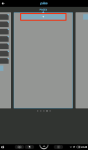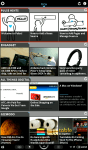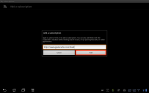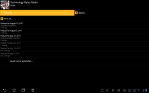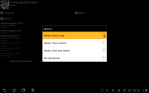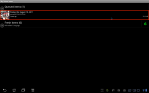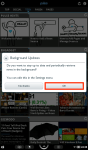
(To view a larger image with a more detailed description tap or click a thumbnail.)

Pulse Hints for the Nook Color (stock) is a free easy to use news reader and aggregator.

News aggregators combine multiple news sources from disparate locations for reading from a single site or application. Pulse performs this job admirably and uses a standard news reader interface similar to applications like the Huffington Post, or USA Today applications available on the iPad.

The app by default groups categories of news sources into pages. Examples include the Top news page, Tech news page, etc. You may modify any existing page by adding or removing news sources. Blank pages have also been included by default so that it may be easy to create your own type of specialised news pages tailored to your own interests. For example, you may add political news from your trusted and favourite sources on one page, or create a page containing all of the sport news sources you read avidly. To customise a page tap the Gear icon located at the top left of the screen. Sources on each page are listed and are easily removed by tapping the circled “x” in the top left corner of the item button.

News sources likewise are easily added by tapping the “+” button found at the bottom of each edit page. A source can be found a variety of ways, my favourite approach is to use a pre-categorised list of common pages via the Browse tab. Another tick mark in the “plus column” for Pulse is the feature permitting a Google Reader account to be added as a custom news source on a page.

Finally, if editing, creating, modifying, or finding news sources becomes confusing, Pulse includes Pulse Hints items for assistance. Pulse Hints are “news” sources that provide easy to follow directions on how to use and customise the reading experience, and are commonly found at the very top of a page.

Verdict: Search for and install Pulse – a great application available for free from the Nook Store.

Disclaimer: I am not associated or employed by any company producing software reviewed on this site.

(Use the tag cloud at right to view similar topics. If you like this post +1 it!)

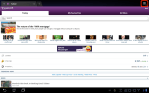
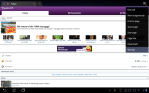
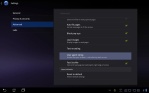
(To view a larger image with a more detailed description tap or click a thumbnail.)

In a previous post I showed how to set the User Agent string whilst using Atomic Web Browser on the iPad to render web pages in standard or non-mobile layouts. With Android Honeycomb changing the User Agent string is permitted by default, allowing one to enjoy web content without experiencing the ugly layout compromises and clumsy usability drawbacks of sites that serve specialised layouts intended to accommodate tablet devices.

As we all know, the road to hell is paved with good intentions, so the only remaining viable option is to “fool” remote web servers into believing a desktop web browser instead of a tablet web browser is requesting HTML content. The most common way to do this is to change the User Agent string, which tells a remote web server: “I am a browser running on a desktop, so don’t mess about with the layout please.”

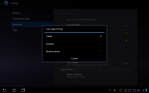
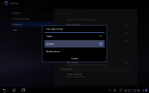
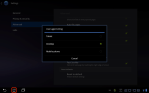
To make the User Agent string of the Android Browser say this, tap the Options menu icon at top right (see screenshots), and Settings in the drop menu. In the Settings screen, select Advanced in the left section, then scroll down and select User agent string. Change the default setting from Tablet to Desktop in the dialog menu and voila, after reopening the Android Browser you can now browse web pages and other content sans hideous tablet layouts.

(Use the tag cloud at right to view similar topics. If you like this post +1 it!)

Since the introduction of the iPhone and iPad, more and more IT departments not only have been requested to accommodate iOS devices in the corporate or enterprise IT infrastructure, but find themselves being asked to deploy and setup these devices for users.

Many of the best sources and guides for information on how to deploy iOS across the Enterprise comes from Apple. Consult these resources:

Other non-Apple based tools include:

  • MobileIron offers IOS Management tools. App inventory capabilities, detection of jailbroken phones, and enforcement of IT polices are a few of its many features.
  • Good For Enterprise allows additional features such as deploying apps without iTunes, selective wipes of corporate data without touching user data and tools for managing Android Mobile devices. Find out more here.
  • Sybase Afaria offers a rich set of tools to manage corporate data on mobile devices, install apps without iTunes, among other great features.
  • McAfee also offers Enterprise Mobility Management tools for the iPhone and iPad.

Sources: Some information on non-Apple tools gleaned from this great Infoworld piece.

Disclaimer: I am not associated or employed by any company producing software reviewed on this site.
(Use the tag cloud at right to view similar topics. If you like this post please +1 it.)

I recently learned of Shop Savvy during the last Triad tablet user group meetup and was pleased to learn it can scan both UPC and QR Codes.

I also learned at the meeting that it can help save money by displaying a price comparison table of a scanned UPC code of local and online stores. If an item can be found locally, the app can show the store location, map, and driving distance to the store.

It goes without saying that in the current rough economy, an application that provides quick price comparison information can be a useful tool that can help stretch each dollar just a little bit further.

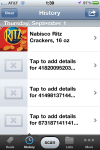
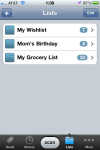
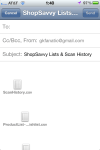
Shop Savvy also has a host of other useful features such as creating shopping lists of items, Dropbox synchronisation, and the ability to export lists and scanned items to CSV format and attach in an email. Further experimentation scanning home pantry items showed me that Shop Savvy works best with common brands, a fact discovered whilst scanning the UPC codes of my orange jaffa cakes and Clancy’s Spicy Salsa tortilla chips (crisps). Both of these items were purchased at my local Aldi store. In fact none of the Aldi specific brands I purchased were found by Shop Savvy, which is a bit unfortunate, as Aldi generally has competitive prices and in my personal opinion higher quality products (please note that I am not employed by or own stock in Aldi). Lesson learned, not all chain supermarkets or stores are listed and searched by Shop Savvy.

So for food or items commonly found in the larger American store or supermarket, odds are higher that it will be listed in the Shop Savvy database. However for such items as say orange jaffa cakes (not common in America), the app gives you the opportunity to create an entry so that the photo, price, location, store name, etcetera, can be sent along to the Shop Savvy database in the sky, thereby helping other people in your community. Now if I could only remember what I paid for those jaffas and crisps…

Verdict: Get the free Shop Savvy app here at the App Store.

Disclaimer: I am not associated or employed by any company producing software reviewed on this site.
(Use the tag cloud at right to view similar topics. If you like this post please +1 it.)

(To view a larger image with a more detailed description tap or click a thumbnail.)

Although many are aware that the Asus Transformer permits an optional attachable keyboard featuring a touchpad, many are not aware that the touchpad itself permits multitouch features in its own right.

Consult the screenshots above for examples of common multitouch operations using the touchpad. One of the most interesting tricks using the touchpad is using the pinch apart technique to view all desktop pages whilst on the Home screen.

Opinions may differ however on the utility of the white circles that are temporarily overlaid on the screen if using the touchpad. I find the feature useful, and whilst using two fingers, the system will show each finger represented as a circle on the screen. Contrast this with either no graphical representation of multiple fingers -or- the confused mouse pointer jumping about as commonly experienced on many desktop and laptop computer systems.

(Use the tag cloud at right to view similar topics. If you like this post please +1 it.)

Posted by: glasskeys | 08/27/2011

Triad iPad and tablet user group meeting at 11:00 am.

Triad area tablet users – a reminder: The Triad iPad and tablet computer user group meets today at 11:00 am.

I have been keeping an eye on the dastardly Hurricane Irene. It won’t effect the Triad much, but if you are still concerned about coming to the meetup here is the link to Google’s Hurricane Irene resource page (thanks Google) with it’s huge map and slew of links to Irene related resources along the right side of the page.

Please note: Although this hurricane won’t affect us in the Triad today, those living to the Northeast of us should definitely prepare for this storm.

For the meetup I will be bringing along a menagerie of tablets: iPads, Android tablets (Gingerbread & Honeycomb), and a Nook Color stock and with the removable CyanogenMod 7 sdcard install.

I look forward to seeing you at 11 at Rev’s Coffee House (3793 Samet Drive, High Point, NC 27265-8072).

As always everyone is welcome to attend.

(To view a larger image with a more detailed description tap or click a thumbnail.)

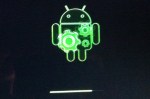
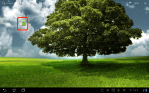
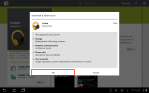
The screenshots above illustrate how to install Android system software updates on an Asus Transformer (TF101) tablet. When updates are available a small icon will appear on the bottom right margin of the screen (an arrow pointing down to a horizontal line). Tap this and the update that “pops up” in a small list. The Transformer will then immediately begin downloading needed updates, patches and other installation files.

The system will reboot showing the outline of the Android robot with gears and a progress bar indicating installation completion – as the second jittery and hastily taken photo above illustrates. When finished installing the updates, the Android home screen appears as normal (sans the update icon), with no further interaction required from you as your system will be using and running the newest software.

Periodically the update icon will appear as new bug fixes, patches, etc. become available, so simply repeat the process above to install future software upgrades for your tablet.

(Use the tag cloud at right to view similar topics.)

(To view a larger image with a more detailed description tap or click a thumbnail.)

Many users of the iPad & iPhone are aware of podcasts or netcasts, and subscribe to programmes that are regularly downloaded, updated, and synced to their devices with iTunes via the Podcast tab.

Android users also have many options and applications available to view or consume netcasts, but are unsure how to instruct their Android devices to subscribe to the same content. The following steps will show how to do this.

On your PC or Mac, open iTunes, select the Podcasts category in the left menu and single click a podcast in the subscribed list located in the right pane. Ctrl-Click (Mac) or right-click (Windows) a podcast you desire to listen to on your Android device, and choose the Copy Podcast URL option. Open TextEdit (Mac) or Notepad (Windows), and paste the copied URL into the blank editor window. This is the address of the RSS feed of the netcast/podcast. If you wish you can repeat these simple steps and copy and paste all of the URLs of the podcasts you wish to listen to on your Android device into the text editor document window. If pasting multiple URLs be sure to begin each link on a separate line.

To listen to the podcasts on Android, I chose to use the free Google Listen application found on the Android Market. If installing for the first time, be sure to tap the OK button to give the app permission to run on your device, then open the application after download is complete.
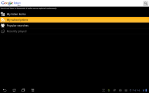
A podcast can now be added by tapping the My Subscriptions menu, then Add a subscription on the following menu. In the Add a subscription window, you need to enter one of the podcast URLs pasted into the “Document O’URLs” created earlier on your computer. If you are new to Android you may be more comfortable copying the line manually by retyping a single URL line into the text box. If, on the other hand, you are more comfortable with Android – the TextEdit or Notepad document can be saved in Dropbox or sent via email and opened on your tablet. From an email app or Dropbox editor, copy a single URL address line to paste into the white text box. Regardless of the technique you opt to use, after the URL is entered tap the Add button.

The Reader application then retrieves a list of programmes using the RSS podcast feed just added, and a Subscribe button will appear on the top left area of the screen. Tap this, then select an update frequency in the Queue… window. I chose the Newer than a day option to ensure my subscription is updated with the most recent programme. Tap the Back button at bottom left upon picking a Queue… option.
The podcast now appears in a list, and is most likely being updated with the progress displayed as a steady increasing number. When finished, tap the rectangle of the podcast, and it will begin playing. Standard media buttons, such as pause/play, skip forward/back, et al. are found at the bottom of the screen.

Enjoy your programme!

(Use the tag cloud at right to view similar topics.)

(To view a larger image with a more detailed description tap or click a thumbnail.)

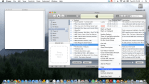
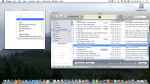
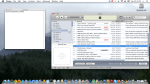
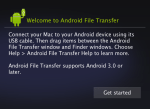
Since the introduction of Android 3.0 (Honeycomb), Google has opted to implement Media Transport Protocol (MTP) support for file transfers to and from Honeycomb devices instead of using generic traditional USB techniques. Although Honeycomb devices still connect to their host computers with a USB cable, the protocol is not supported by default in Mac OS X, leaving these users unable to perform basic direct file transfer operations to/from their Honeycomb tablets.

Google and others have stated why MTP has been implemented in Honeycomb – the primary reason is elimination of file system partitioning needed by OSes using traditional USB access methods, and secondly it enables the device to be on and used at the same time it is connected to a host PC or Mac.

Mac users need not fret though, if using Mac OS X 10.5 and higher you can use the Android File Transfer application available for free download from Google here. Windows users (if using Vista or Windows 7) should be able to connect and transfer files easily if the Open device to view files using Windows Explorer option is selected after connecting their Honeycomb tablet to their Windows desktop.

Incidentally, the screenshots were taken after connecting the Asus EEE Pad Transformer (Transformer TF101) to both Mac OS X and Windows 7 desktops using the USB cable shipped with the device.

* * * * * * * * * * * * * * * * * * * * * * * * * * * * * * * * * * * * * * * * * * * *
Update – 27 Aug 2011: If you use Windows XP, installing Windows Media Player 11 for Windows XP should enable you to connect to devices utilising the MTP protocol.

Update – 17 Nov 2011: Some info on connecting and what to look for to safely eject MTP (Honeycomb & Ice Cream Sandwich) tablets & mobiles in Windows 7.

(Use the tag cloud at right to view similar topics. If you like this post please +1 it.)

(To view a larger image with a more detailed description tap or click a thumbnail.)

Taking screenshots on Android Honeycomb is a much simpler proposition than on older versions of the OS as it was designed from ground up with tablets in mind. Using the prior versions (<= Android 2.3), often times one had to look on the Android Market for an screenshot app designed specifically for a device and OS flavour, and to complicate matters further often required the use of root privileges to work properly. This state (more like civil war) of affairs was the norm more so on tablets than mobiles.

With Honeycomb, tapping and holding the Recent Apps screen button will take a screenshot and place it in a Screenshots album, and easily perused and viewed using the Gallery application. The Recents button appears as an icon of stacked rectangles located in the bottom left margin of the screen and to the right of the Home icon.

For those more attuned to their Android file system, the location of saved screenshot images are found in /mnt/sdcard/Screenshots. Incidentally – a symlink to the sdcard folder exists in /, so the path /sdcard/Screenshots will also work on Honeycomb tablets.

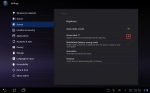
In some instances this capability may be turned off, so open the Android Settings app, tap Screen on the left hand list, and finally ensure that the Screenshot box is ticked ON. If you take a screenshot, ensure to tap the Yes option when prompted to stay in Screenshot mode.

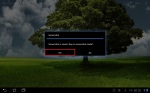
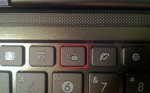
For those using the Asus Transformer with the optional detachable keyboard, a special screen shot button exists directly above the white-circled “6” key. If this key is pressed, a small notification dialog briefly appears when the screenshot has been saved.

(Use the tag cloud at right to view similar topics.)

« Newer Posts - Older Posts »

Categories