(To view a larger image with a more detailed description tap or click a thumbnail.)

Today’s post addresses an issue relevant to owners of the Asus EEE TF101 Transformer tablet with the attachable keyboard dock with touchpad. As a previous post on multitouch using the touchpad illustrates, the default pointer is one or more circles that represent the position of each finger on the touchpad.

Although I personally prefer circle pointers and find them especially well-suited for multitouch, some users of the Transformer are driven mad by this style of pointer(s) and desire the single “traditional” arrow style mouse pointer of yesteryear.

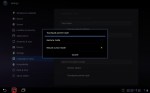
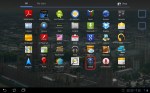
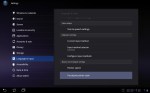
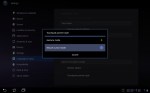
If you desire to use the single arrow pointer, start by tapping or clicking Apps in the top right corner of the Home screen. Next open Settings, select Language & input category, then scroll the right section down to the Mouse and trackpad settings heading. Next, select Touchpad pointer style and finally Mouse cursor mode in the center dialog window.

Return once more to the Home screen and you will then see the traditional arrow style pointer move in concert with your touchpad finger.

(Use the tag cloud at right to view similar topics. If you like this post +1 it!)

Posted by: glasskeys | 10/06/2011

How to add email accounts in Android Honeycomb.

(To view a larger image with a more detailed description tap or click a thumbnail.)

Android Honeycomb supports the ability to add multiple email accounts, however it is not quite as “user friendly” as doing the same on the iPhone or iPad. In Android this is handled in a Settings app like the iPad, but if the iOS (and English) word email is substituted with the Android word Accounts & sync, it becomes a bit clearer, but not to the extent that wondering why the word email wasn’t used in the first place.

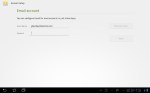
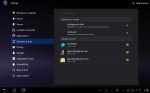
To start, tap the Apps icon located at the top right corner of the Home screen, and open the Settings app by tapping (not turning) the icon resembling an old fashioned analogue radio dial. Select the Accounts & sync category, then the + Add account located in the top right of the Settings screen. Finally an option is presented to add (gasp) an email account. Tap Email in the short list.

In the Email Account screen enter the email address and password for the account then Next. In the screenshots above, I chose to add my yahoo “whipping account” for purposes of illustration. Android will now try and validate with your email provider, and a message such as “Checking incoming server settings…” will briefly flash during this process. After validation, there are a handful of options to tick on and off. Tap the Send email from this account by default box if you wish the email address entered on last screen to be the “primary” mail account. When finished tap Next to proceed to the next and last step, setting the Account and Display names.

The Account name is the name of the account as far as Android is concerned, Display Name is the name remote recipients see when they see your messages appear in their inbox. I generally choose to use the email address as the Account name, and my real name as the Display name. After the final Next button is thankfully tapped, the new email account appears in the Manage Accounts list in Settings.

For non-Google email accounts use the Mail application to read and send messages. The first time the account is accessed in Mail there will be a delay because the mail folder needs a full synchronisation, after the initial sync the process will be much faster when Mail is opened.

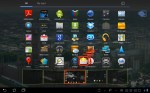
You may wish to place the Mail app on the Home screen for quick access, the last three screenshots illustrate how to drag an icon to a Home screen whilst viewing Apps icon grid. The key is to open Apps, and tap and hold the Mail icon. This permits dragging the icon to one of the Home screens represented by rectangles at the bottom of the window. Release the Mail icon after it is inside the rectangle of your choosing and it will then be visible on “real” Home screen.

(Use the tag cloud at right to view similar topics. If you like this post +1 it!)
Posted by: glasskeys | 10/05/2011

Rest in Peace, Steve Jobs.

I have just been informed of the terrible news that the genius founder of Apple – Steve Jobs – has suddenly died aged 56 — much too young for someone with such a zest for bringing such beautiful ideas into the world.

In honour of this great man I think it is appropriate to remove the backlit touch keyboard, because we would be using horrible things such as this everyday if it weren’t for his insight to bring the Mac, iPod, iPhone, iPad and many other great things into our lives.

I always got the sense, in reading countless ancedotes and stories about Steve Jobs that “just good enough” was never good enough, but I am glad he was the way he was.

Thanks Steve, we will always remember with fondness the great things you accomplished and for always believing and showing us a better way.

Posted by: glasskeys | 10/04/2011

Lets talk iPhone event today 10AM PT.

Unless you have been living in a cave the last year and a half, and are unaware of current iPhone news: Apple will be discussing our favourite iOS based mobile and other topic during a special event scheduled today at 10AM PT.

Live coverage will be available from multiple sources: All Things D, Slashgear, and most likely live on Twit.tv.

My guess is that the announcement will cover iCloud heavily, new features of the iPhone stable of products, and the integration of refined voice control technologies. My instinct also tells me to believe the rumours that the iPhone 5 will be exclusive to Sprint (US mobile carrier) until Q1 2012.

Update 15:19: This was probably one of the most yawn inducing Apple product announcements in years. The iPhone 4S not the iPhone 5 was unveiled, with incremental hardware upgrades, integration with the voice-recognition app called Siri that has been available on the App Store for a while now, a Dropbox-like service dubbed iCloud, Sprint is now a carrier selling the iPhone 4S (big shocker) and the killer feature of sending real printed (yuck) greeting cards now supported by the newest Apple mobile. Totally underwhelming and I wish I had the two hours back.

Posted by: glasskeys | 10/03/2011

Windows 8 and the Metro interface.

(To view a larger image with a more detailed description tap or click a thumbnail.)

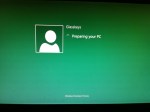
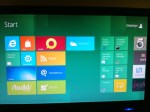
I decided to take a break this past week, recharge the batteries and play around a bit with Windows 8. Shown above are shots taken during installation of the Windows 8 Developer Preview edition. I chose to install the full 4.8 GB 64-bit image with developer tools version (download link).

Although there are techniques to install Win 8 on VirtualBox, I instead opted to use a spare drive to test and experience native speed performance. I was pleased with the snappy performance, and the included Metro sample apps had a clean, uncluttered appearance – a first for Windows in my experience.

At this juncture, whilst I think Windows 8 would be great tablet interface, I am still not quite convinced it is the right approach for desktop computing. But it appears that Microsoft has thought of this: The inclusion of a desktop feature that displays the tried and true classic Windows screen should ease the transition for users that are uncertain on how to use the Metro style interface.

As I will be reporting my findings in a bit more detail on this topic in the near future because Metro is relevant to tablets, but I recommend you give Windows 8 a go yourself — especially if you are an IT professional or software developer.

(Use the tag cloud at right to view similar topics. If you like this post +1 it!)
(To view a larger image with a more detailed description tap or click a thumbnail.)

The screenshots above illustrate Android techniques for using 24-hour time format, (AKA “military time” in America) as well as the technique for setting the clock manually instead of using automatic settings.

There are many areas scattered about the globe that do not follow standard GMT based time zone behaviour. Indiana in America is a famous example, certain Australian localities, even entire countries such as Venezuela.

Complicating matters further, not all countries implement Daylight Savings Time, and the countries that do continue this archaic practice do not change clocks on the same date worldwide.

Long story short, sometimes it is simply easier to set your tablet or mobile to match the time displayed on the alarm clock next to your bed. To do this on your Android device be sure to un-tick (un-check) the Automatic date & time box so that the Set date and Set time functions are enabled.

(Use the tag cloud at right to view similar topics. If you like this post +1 it!)
This tutorial will explain how one can replace the default Android font used by icons and system menus on CyanogenMod with a truetype (.ttf file) font of your choosing without the purchase of specialised third-party software to modify fonts. The only prerequisite is that you must use a terminal emulator to run commands on your tablet or mobile.

The terminal application I use on my tablet is the free and appropriately named Android Terminal Emulator app, available for download from here if you have not already installed an emulator of your own choosing. I will also be presenting the information in this tutorial from the perspective of a Windows user, although the same concepts can easily applied by users of Mac OS or Linux.

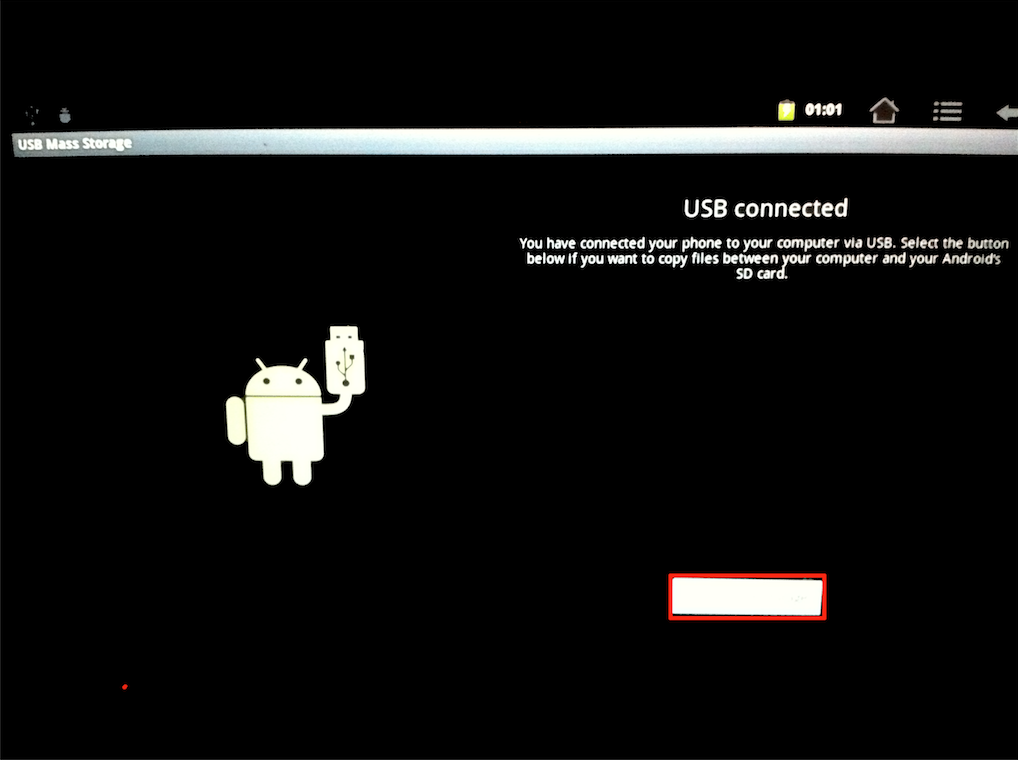
First things first – connect your tablet or mobile running CyanogenMod to your computer via the USB cable. The USB connected screen on your tablet will appear shortly thereafter prompting you to tap or select a button to connect to your PC:

Read More…

Posted by: glasskeys | 09/14/2011

Windows 8 Developer Preview available for download.

Huge news for tablet developers: Microsoft has made Windows 8 Developer Preview available for download in a variety of configurations (including 32 bit ISO’s) here.

With some pundits forecasting doom for Microsoft if Windows 8 is not successful, others gaze into the same murky crystal ball and state the same adverse outcome is in store for the Apple iPad after Windows 8’s commercial release.

I will determine this myself by installing the full preview (Windows Developer Preview with developer tools English, 64-bit) – a 4.8 GB, ISO download that includes the OS, developer tools, and applications sporting the Metro interface.

Incidentally Windows 7 Hacker has a great article on how to install the Win 8 preview using VirtualBox running on Windows 7.

Tablet user group meet-up.

Tablet user group meet-up.


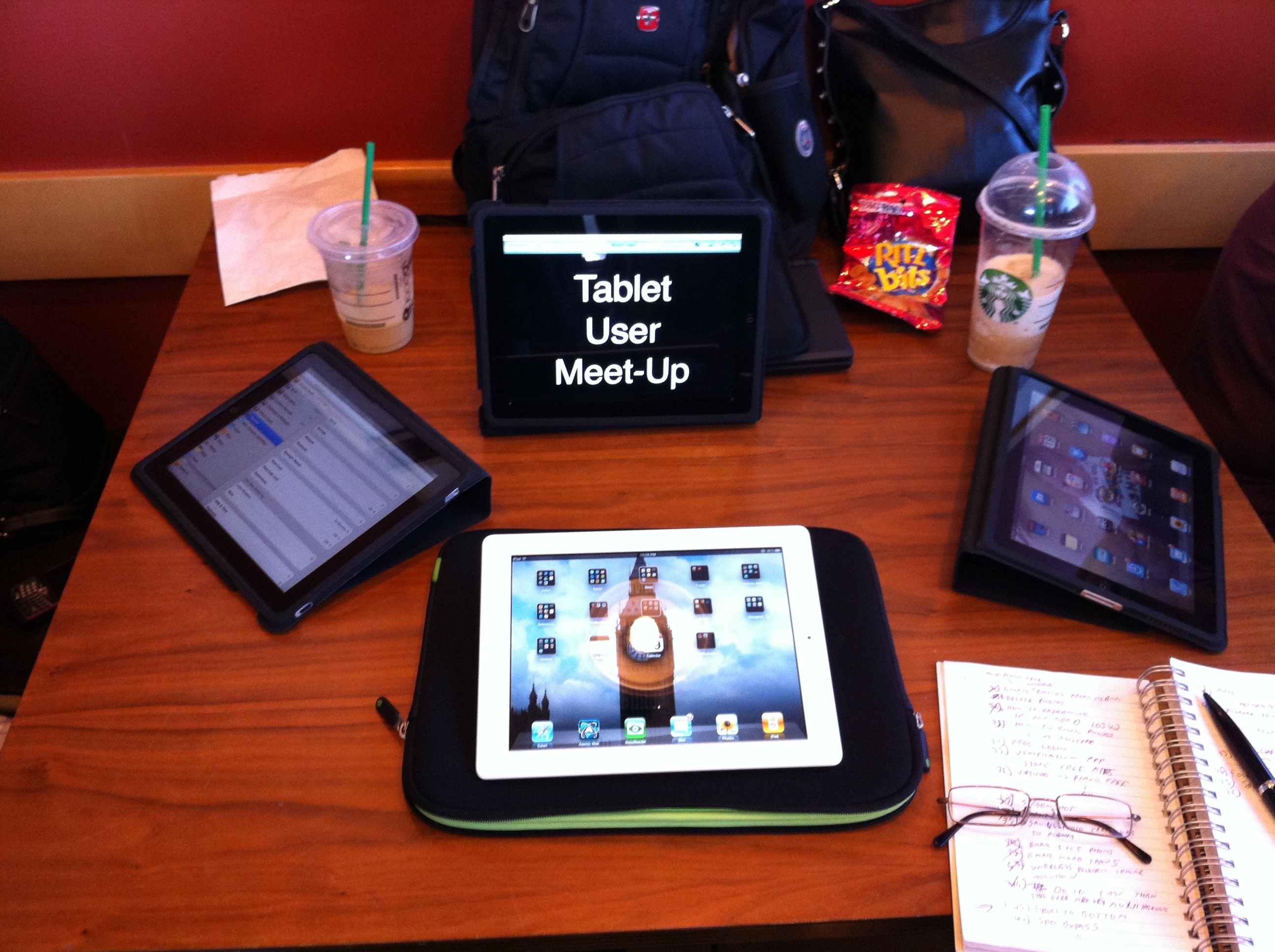
The next meetup of the Triad iPad & tablet computer user group has been scheduled for Saturday September 24 at 11:00AM in Rev’s coffee house.

All tablet users (iPad, Android, Microsoft based tablets, etc.) or those interested in tablets are welcome to attend.

Since moving from Starbucks to Rev’s membership has greatly increased along with the benefits that are derived from better surroundings: muted sound (being able to hear someone setting next to you helps), much more space, and last but not least, coffee sans burned flavour. ;)

(To view a larger image with a more detailed description tap or click a thumbnail.)

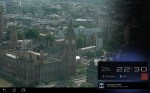
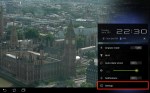
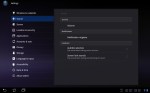
Today’s brief post on Glasskeys illustrates the concept: “A picture is worth a thousand words”. The first four screenshots above detail how one can access a “mini-settings” menu by tapping the clock on an Android Honeycomb Home screen. Tapping the Settings icon once more inside this menu will open the full-fledged Settings application.

The last two shots show the location of the Settings icon on CyanogenMod 7 (CM7) at the top right of the screen (appears as stacked lines). Tapping the clock on the CM7 screen displays a dark grey flap that must be dragged to the bottom of the screen to access a small “mini menu” of common settings items such as wireless, bluetooth, location services and volume control.

The Honeycomb screenshots were taken on the lovely Transformer TF101 and the CyanogenMod photos were taken of a Viewsonic G Tablet with live wallpaper enabled.

(Use the tag cloud at right to view similar topics. If you like this post +1 it!)
« Newer Posts - Older Posts »

Categories