Posted by: glasskeys | 03/06/2011

How to turn off cell data on the iPad & iPhone.

(To view a larger image with more detailed description tap or click its thumbnail.)

For various reasons it may be necessary at times to turn off cellular data on your iPad or iPhone. For most users – especially in today’s economy, it is an issue of the exorbitant cost of using cellular data, especially if free or low cost Wi-Fi is available.

To slash costs perform the following actions: Open Settings, select Cellular Data, then toggle the slider to the Off position. You can then click the Home button to return to the icon screen.

Posted by: glasskeys | 03/05/2011

Triad iPad and tablet user group meeting at 11:00 am.

Triad area tablet users – a reminder: The Triad iPad and tablet computer user group meets today at 11:00 am.

All tablet users (iPad, Android, Microsoft based tablets, etc.) or those interested in tablets are welcome to attend.

(To view a larger image with more detailed description tap or click its thumbnail.)

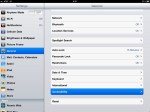
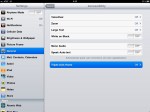
Many people are not aware that the Home button can be designated to perform tasks when triple-clicked on the iPad & iPhone.

To use this feature open Settings, General, Accessibility, and select the Triple-click Home option.

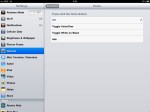
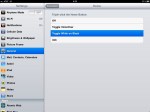
On the Home settings screen four different options are available:

  1. Off – This disables triple-click functionality.
  2. Toggle VoiceOver – Menus and options will be read to you whilst using the Home screen and applications.
  3. Toggle White on Black – All screens are inverse colour a preference for some users during night time use.
  4. Ask – This will prompt you to choose to Turn VoiceOver On, Turn Zoom On or Turn White on Black On.

For the purposes of illustration, I set the triple-click functionality to the Toggle White on Black feature and took the screen shots above. I toggled back to normal view by triple-clicking the Home button once more.

Posted by: glasskeys | 03/04/2011

Joining the Nook Developer program.

Android with toolbox.

Android & tools.

I recently joined the Nook developer program through Barnes & Noble.

* * * * * * * * * * * * * * * * * * * * * * * * * * * * * * * * *
UPDATE – (03/22/2011): To join the programme you can follow the steps below, but you may want to read this & decide if you wish to continue further.
* * * * * * * * * * * * * * * * * * * * * * * * * * * * * * * * *

First you need to create a Barnes & Noble Account here. If you purchased a Nook or Nook Color you most likely have done this step already, as it is one of the steps performed on initial device setup.

Then sign up for the Nook Color Developer program.
Read More…

(To view a larger image with more detailed description tap or click its thumbnail.)

Have you ever been driven mad by your iPhone reminding you that you received a text message multiple times?

To stop this annoyance, open Settings, then select Messages, and finally slide the Repeat Alert to the Off position.

UPDATE (04/15/2011): On iOS 4.3, this has changed slightly. Continue on to Messages, but instead of selecting Repeat Alert, tap Play Alert Tone followed by the Once option.

(To view a larger image with more detailed description tap or click its thumbnail.)

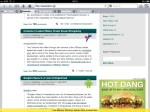
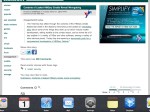
Atomic Web browser is a great application to provide a warning to the user when memory resources are low. To illustrate the concept of closing applications, I used the browser to open multiple tabs of a favourite web site I frequent, and had many applications “running in the background”.

To close background apps, begin by using the multitask feature (double click Home button), then tap and hold one of the active app icons in the multitask ribbon. After the icons start dancing in the ribbon, tap the red minus circle on the app icons you wish “closed”. Each application closed frees up a bit of memory, providing faster performance and less chance of inexplicable application “crashes” or other odd behaviour.

NOTE: Closing an application is different than removing it. Ensure you see the multitask ribbon, if you receive a warning that you will be removing or uninstalling an application, you are performing this task on the Home screen – which is not the same as closing it in the multitask list.

That being said, when finished closing applications, click the Home button once and the application icons will cease their Mexican jumping bean antics, and a tap above the ribbon will return you to your active application.

Posted by: glasskeys | 03/02/2011

iPad 2 on sale March 11.

iPad 2

iPad 2 available in black & white.

It’s official – the iPad 2 is out. The biggest differences: A5 processor, front and rear facing cameras, great new streaming video functionality, Verizon support, black and white colours, slightly lighter and much (33%) thinner.

iOS 4.3 will also be available for download on March 11, 2011. Facetime on the iPad 2 will support 780p. NOTE: iOS 4.3 will only be available initially for GSM devices. No word yet on Verizon carrier (US) iOS 4.3 support.

Apple is selling the iPad 2 on March 11 in the US & will ship in Britain on 25 March.

(To view a larger image with more detailed description tap or click its thumbnail.)

Although multitasking is one of the best new features of IOS version 4.2 on the iPad & iPhone, not many beginning users are aware of how it can be used, let alone how to begin using it.

Multitasking is invoked by double clicking the Home button on the surface of the iPad/iPhone. In older versions of IOS, double clicking the button would return one to the first page of the Home screen. Since icon groups AKA categories was also a new feature introduced with the newest IOS version, there is no longer much need to scroll through page upon page of application icons.

Double clicking the Home button slides the current home page up and shows the list of currently running applications in the background.

Take for example, the normal routine of switching from Pages to Photos: Click of the Home button, opening Pages, performing an editing task, click the Home button again, find Photos app, copy a photo, click home button re-open pages, ad nauseum. The multitask double-click way is much faster, and most important returns to the application as you left it. This is best illustrated when switching back and forth from Safari, and helps eliminate many instances of the maddening page reload behaviour.

A picture says a thousand words: Start with the first image in the screenshots above to view a real world example of multitasking.
Posted by: glasskeys | 03/01/2011

Nook demo, unboxing, and setup.

I recently went and visited my local Barnes & Noble store after receiving an offer of free coffee if I reviewed the Nook Color. Since I am a fanatic of both tablets and coffee, this was a win-win situation for yours truly.

After the demo, and reading some incredible technical information on the Nook Colour on XDA-Developers forums, I decided to purchase one for myself.

Although personally I get my “juice” from finding non-rooting/jailbreaking workarounds for common issues that don’t violate the terms of service (TOS), and passing that information on — I have learned much technical information from groups such as X-Dev. So cheers!

A slide show of the demo and unboxing photos will be visible to you after the clicking the Read More… link. A very helpful and patient member of staff at the store kindly permitted my incessant camera work and questions about the Nook Color.

NOTE: I am not associated or employed by B&N, but have recently joined the Nook Developers program (more about that in a future post).
Read More…

(To view a larger image with a more detailed description tap or click its thumbnail.)

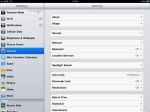
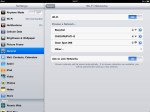
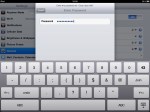
The screen shots above give a good walk-through on joining Wi-Fi networks on the iPad. I took the Settings, General route because I want to familiarise the reader with the VPN option and other settings which I will address in an upcoming tutorial.

« Newer Posts - Older Posts »

Categories