Posted by: glasskeys | 04/30/2011

How to upgrade the Nook Color to version 1.2.0.

(To view a larger image with a more detailed description tap or click a thumbnail.)

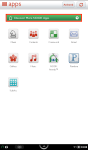
Barnes & Noble finally decided to introduce its oft-delayed App store recently, and has thrown in a 1.2.0 software update into the mix. Although the B&N Store is essentially useless in relation to the real Android market store, other features such as the ability to play flash video, and noticeable performance improvements make this an update worth looking into for Nook Color owners, at least for those few remaining that haven’t rooted their device.

First and foremost you should determine if you actually need v1.2.0. Do this by tapping the Settings button, which opens the Settings window, tap Device Info, then in the Device Info screen, select About your Nook Color. Most likely the Software Version section will read 1.1.0, so feel free to proceed. If you see 1.2.0 or higher – do not continue further.

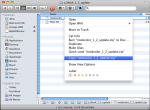
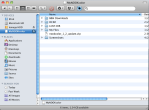
Barnes & Noble has a Software Updates page here. Click the Expand All link so you may actually, you know, read the web page text as you would on any other site. To save you time navigating the ill-thought out update page, the direct link to the 1.2.0 version is here, save this file to your local machine. Connect your Nook to your computer using its silly USB cable, and copy to the update file to the root folder on your Nook. As with prior upgrades, do not extract the update zip file, or place in a location other than the top directory location on the Nook.

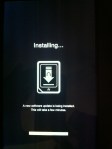
After the copy is finished, eject the device and hit the power button, but do not fully turn off. The Nook then uses its cadre of hidden coding elves to update various system files, and when completing their tasks, the elves flip the screen switch back on so you can see the Installing.. window displaying progress until the update is fully finished. After this process is finished, verify the update has worked properly by tapping the green button at the bottom left of the screen. You should see this message: “New Software Update version 1.2.0. Your nook is up to date with the latest software.

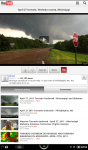
You will be able to watch YouTube videos, enjoy smoother and faster scrolling behaviour, and riffle through the limited selection of overpriced apps on the Nook application shop. Enjoy your update!

(To view a larger image with a more detailed description tap or click a thumbnail.)

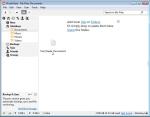
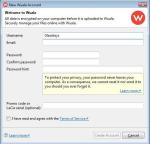
Recently I discovered Wuala (pronounced like “voilà”) an online storage service — after reading Leo Laporte’s twitter posts recently. Wuala in my mind would represent the progeny of Dropbox and SpiderOak. Like Dropbox it easily provides you an “online” memory stick functionality accessible from a multitude of devices. However, unlike Dropbox and similar to SpiderOak — the service encrypts your files before you send them to the “cloud” and has no knowledge of your personal encryption key. But like mutant children everywhere, it has unique features all its own. Case in point: Wuala offers a user more cloud storage if you volunteer storage on your personal computer for use. Wuala explains this concept in its FAQ:
Do I have to trade local storage for online storage?

No, you don’t have to. You start with 1 GB provided by us. If you need more, you can simply trade some space on your hard disk for additional online storage. However, this is optional. The idea with trading is not to give you more storage in total, but to change the quality of your storage: the ability to transform local storage into online storage that can be accessed from anywhere and at any time, even when your computer is offline. You can also buy additional storage if you want.”

If you are interested in getting 1GB free first you must signup and install Wuala on your Mac, Linux boxen, or PC. After the sign-up and installation then you may use the Wuala application on your iPhone or iPad.

Disclaimer: I am not associated or employed by any company producing software reviewed on this site.

Posted by: glasskeys | 04/27/2011

Viewsonic G tablet…first impressions.

I just acquired a Viewsonic G tablet and running it through the paces.

I am still not sure on whether I will keep it stock or use an Android ROM. I would ideally like using the device for development, so I am leaning towards a ROM.

One thing I am sure of at the moment is that taking a screenshot with the Viewsonic G tablet is not nearly as easy as it is on my iOS devices.

(To view a larger image with a more detailed description tap or click a thumbnail.)

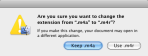
Follow the screenshot walk-through above to create your own custom ringtones for the iPhone and iPad 2. The major steps are as follows: Open your custom ringtone clip file in iTunes, and convert this to a new AAC version. Then make a local file copy of the iTunes AAC file and rename its extension from M4A to M4R. Drag the new M4R file to the ringtones area in iTunes.

After your iPhone or iPad 2 is connected to your computer, click the Ringtones tab in iTunes and Sync the new ringtone to your device.

(If you like this post +1 it!)

(To view a larger image with a more detailed description tap or click a thumbnail.)

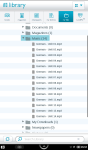
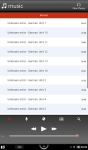
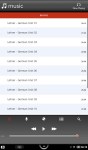
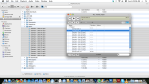
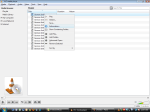
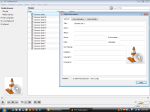
Recently whilst using my Nook Color to listen to instructional music files in the built-in music player, I noticed the player was displaying my album tracks in a seemingly haphazard order although the filenames of the MP3 files sorted perfectly in the library. After investigation I discovered that the Nook uses the metadata of the MP3 files to determine how tracks are sorted.

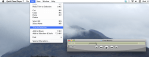
Luckily, knowing that the free VLC application enables one to edit the metadata of MP3 files, I was able to ensure the Title, Author, Album and other track information for each file was entered properly. Of key importance was ensuring that each track number used two digits, so that the names would be sorted properly in alphabetical order.

Get VLC for Mac, Linux or Windows here.

Posted by: glasskeys | 04/23/2011

Status…

Currently I am trying to understand the maddening way in which the Nook Color organises music in its built-in music player. An update on this topic will be posted as soon as I can say something other than “chaotic and unpredictable list behaviour”.

On a brighter note, I have also been trying to find locations in which I may purchase the Asus EEE Pad Transformer tablet on 26 April (US). So far Best Buy in the US seems the most likely candidate.

(To view a larger image with a more detailed description tap or click a thumbnail.)

DuckDuckGo is quickly spreading via word-of-mouth as a search engine that provides a clean interface, useful search results, and abides by a strong privacy policy.

Verdict: Get DuckDuckGo for free if search privacy and fewer SEO pages are your cup of tea.

Disclaimer: I am not associated or employed by any company producing software reviewed on this site.

(To view a larger image with a more detailed description tap or click a thumbnail.)

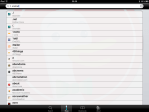
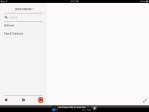
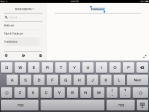
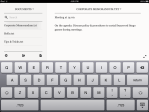
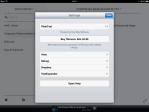
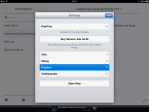
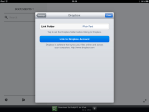
I recently discovered the free PlainText application whilst searching for a Notes replacement that would enable me to quickly create notes and give me the ability to organise notes into folders. I was also pleasantly surprised to learn that the application supports DropBox syncing too.

Using PlainText is incredibly easy, the application has an uncluttered and clean design that makes it a joy to use. I found the creation, naming, and renaming of new documents and folders trivial, and deletion is easily accomplished by swiping a document or folder name and pressing the Delete button.

Verdict: If you use the Notes application on the iPad or iPhone often, you should get this handy and free utility from the App Store here.

Disclaimer: I am not associated or employed by any company producing software reviewed on this site.

(To view a larger image with a more detailed description tap or click a thumbnail.)

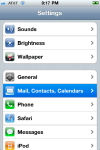
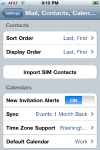
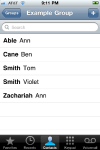
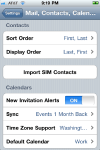
I have been recently been asked by two new iPhone and iPad users on how to adjust the display properties of their newly entered contact lists, so therefore I thought a visual demonstration by way of screenshot would be most helpful. If you are uncertain of how to set your contact list appearance you may also consult the screenshots above.

To begin open the Settings application, then tap the Mail, Contacts, Calendars category and look for Sort Order and Display Order in bold lettering found under the Contacts section. For example if you wish to change the way each person in your contact list is displayed (Ex: Lastname, Firstname or Firstname, Lastname) then adjust the Display Order. If you wish to change the order of appearance that contacts are listed adjust the Sort Order.

Posted by: glasskeys | 04/17/2011

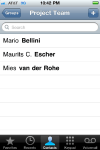
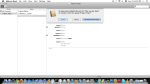
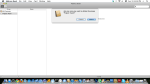
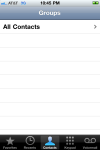
How to add and remove contact groups on the iPhone.

(To view a larger image with a more detailed description tap or click a thumbnail.)

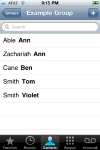
Most users of the iPhone are unaware on how to create or remove contact groups on their favourite mobile device. The easiest way to do this is to use the Address Book application on the Mac or PC to edit and change contact information and groups. Groups and contact names may be added by clicking the + button at the bottom of each section in the Address Book application. To remove a group or name, select the entry by clicking it so it becomes highlighted a blue colour, then hit the Delete key on your keyboard. If deleting a contact you will be presented with a dialog asking if you wish to delete the contact, or only delete it from the group. If you choose the Delete from Group option, the contact will still appear in the All contacts list, the other button named Delete will permanently remove a contact. Deletion of a contact group uses the same delete key method after the group name is selected.

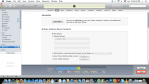
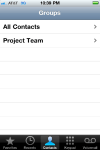
When finished editing your contact information in the Address Book, attach your iPhone to the computer, open iTunes, select the phone in the Devices section, then click the Info tab at top. Ensure the Sync Address Book Contacts option is ticked, then click the Apply button at bottom right to make the changes on the iPhone. A contact may also be removed from a group by deleting the contact on the iPhone itself as shown above.

(Use the tag cloud at right to view similar topics. If you like this post please +1 it.)

« Newer Posts - Older Posts »

Categories