The Triad iPad & tablet computer user group has a new meetup scheduled in August at Rev’s coffee house, 3793 Samet Drive, High Point, NC 27265-8072, on August 27, 2011 at 11:00 AM.
Click here for directions to Rev’s.
The Triad iPad & tablet computer user group has a new meetup scheduled in August at Rev’s coffee house, 3793 Samet Drive, High Point, NC 27265-8072, on August 27, 2011 at 11:00 AM.
Click here for directions to Rev’s.
Posted in Announcement | Tags: high point nc, user group
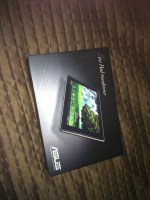
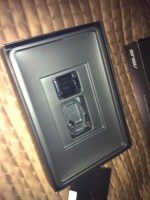

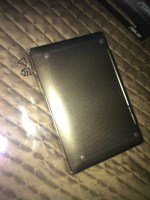
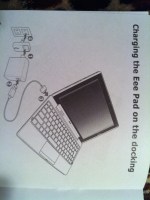
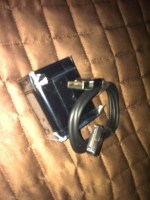
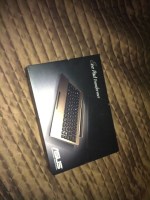
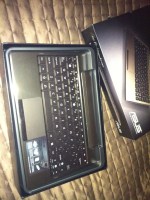
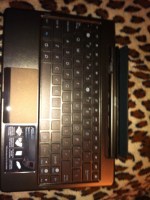
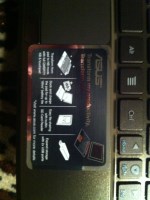
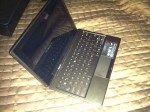
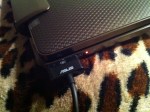
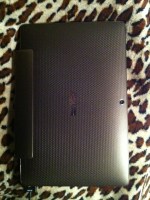
The shots above detail unboxing of a new ASUS EEE Pad Transformer tablet and dockable keyboard. I have been excited about this tablet for quite awhile and finally “bit the bullet” and decided to go for it and acquire this gem.
More details will follow in the near future, but rest assured this tab is worthy of the hype surrounding it and is by far the best Android based tablet I have used, largely due to design, and also because it uses the newest Android OS: Honeycomb.
Posted in Android Tablets | Tags: Android, EEE Pad Transformer, Honeycomb, keyboard, TF101


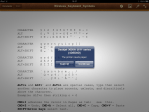
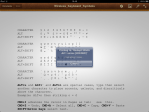
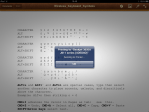


Recently at the Glasskeys household we acquired an HP Deskjet 3050a which is capable of AirPrint – the ability of an iPad or iPhone to send jobs to an HP printer connected to a local wifi network.
I used the iPad Pages app to print the document I created that contains a table of symbols that can be typed whilst using a bluetooth keyboard with an iPad.
Using the feature is easy: in Pages tap the Wrench icon, Share and Print, Print, Select the printer (if needed) and finally a last tap on a button not surprisingly called Print.
If your printer is out of paper (as mine was), the iPad will helpfully inform you with a blue dialog so your can replenish the dried pulp hopper.
Also of note, print jobs can be resumed and cancelled if you use the Home button double-click trick to view the multitask ribbon, then tap the Print Center app icon to bring forth the Print Summary dialog. This is the dialog that ultimately provides control of your jobs in the print queue.
Be also aware not all apps for the iPad & iPhone can make use of AirPrint, HP kindly provides a list of the most common apps that support this feature.
Posted in iPad, iPad Tips, iPhone, iPhone Tips | Tags: AirPrint, Cancel printing, HP Printer, iPad, iPad tips, iPhone, iPhone Tips, multitasking, print queue, wifi
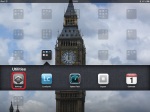

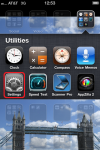
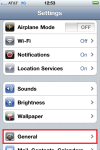
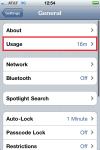

I was recently asked how one could view the percentage of charge available on an iPad instead of the just a small battery indicator displaying the remaining power levels as is common on most iPad’s and iPhone’s.
To see a more precise metric of charge available for your iPad open the Settings app, tap General category at left, and listed in the right pane, toggle the Battery Percentage toggle switch to the ON position.
The iPhone requires one extra tap however: Settings, General, the extra tap being Usage, ending with the familiar toggle of the Battery Percentage switch to the ON position.
Posted in iPad, iPad Tips, iPhone, iPhone Tips | Tags: Battery, Battery percentage, iPad, iPad tips, iPhone, iPhone Tips, power remaining
First the reminder: For those living in the Triad area in America, don’t forget tomorrow is the day of my presentation on tablets from 2-4 PM (EST).
Also my mate Rob Shoesmith of the iPhone 5 experiment has a nice new blog www.iphone5experiment.com, check it out and learn about this madman and his quest to get an iPhone 5, you will be entertained to say the least. Millions of news readers & TV viewers in Britain learning about his exploits definitely have. Even Brazilians are getting in on the act.
Posted in Android Tablets, Announcement, iPad, iPhone | Tags: Announcement, fanatic, iPhone, Presentation
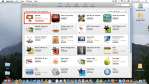
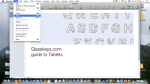

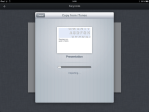
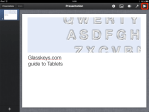

In preparation for my upcoming presentation on tablets at my local community library, I have decided to utilise the built-in feature of the iPad to display presentation slides for my audience to view the slides on a projector.
My approach has been to create my presentation on my Mac using the desktop version of Keynote, and placing the presentation file in iTunes so that the Keynote app on the iPad will be able to display the slides. Follow these steps to use Keynote for your own presentations.
If you do not have Keynote for your Mac, you can purchase it on the Mac App Store, and at the time of this writing the cost is $20 (USD). Create your presentation and when finished and supremely happy with the results – save and place the presentation file in your Documents folder.
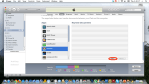
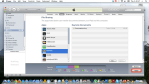
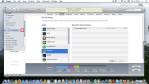
Next, open iTunes and attach your iPad to your desktop computer via the USB cable. We need iTunes so we can “attach” the presentation to Keynote. Click the Apps tab, and scroll to the bottom to the File Sharing section and select Keynote in the Apps box. Next click the Add… button found under the Keynote Documents box. Select the presentation file saved in your Documents folder. Click the Apply button at bottom right of the iTunes window so that the files are synced to your iPad, and when this process is complete, please remember to properly eject your iPad before disconnecting it from the USB cable.
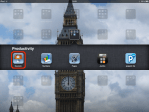
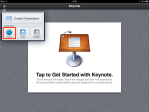
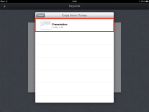
After disconnecting your favourite touch-screen tablet, open Keynote and tap the + button at top left of the Keynote window, to copy from iTunes. In the Copy from iTunes window select the desired presentation, and it will be imported for use by Keynote.
Finally, you may view individual slides by tapping at left, or view full screen by tapping the arrow button located at the top right corner of the screen. Buy some popcorn and enjoy the show! Get Keynote for the iPad and iPhone here.
Posted in iPad, iPad Applications, iPad Tips, iPhone, iPhone Applications, iPhone Tips | Tags: apps, iPad, iPad tips, iPhone, iPhone Tips, iTunes, keynote, Presentation

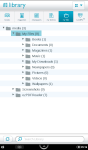


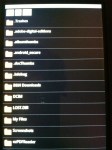
For those readers that have recently installed CyanogenMod 7 using the removable SD card install, the following steps will help you access your “standard Nook” Library My Files folder and the files therein.
On your CyanogenMod home screen use launcher and open the File Manager application. Using the icons at top left, tap the Home icon, tap mnt, then emmc and the list of folders displayed is the same location as found under Library whilst running a “standard” Nook. Your PDFs or other ebooks will most likely be found inside the My Files folder if you routinely copy these from your home PC to your Nook via the USB cable.
Posted in Android Tablet Tips, Android Tablets | Tags: Android, Android Tips, CyanogenMod, File Manager, library, My Files, Nook, Nook Tips, PDF
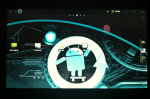


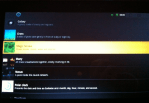
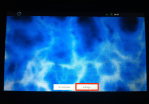

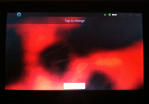
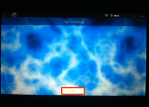


Live wallpapers are the traditional wallpaper background image taken a step further, they are animated and are constantly changing. Unlike iOS devices which offer no animated backgrounds, Android and CyanogenMod includes a variety of styles and colours to choose from “out of the box”.
To set your Android “Live wallpaper” do the following: On the Home screen tap and hold until you see the Add to Home screen dialog, and select Wallpapers at bottom. In the following Select wallpaper from dialog, select Live wallpapers.
A new dialog appears listing a slew of animation styles and themes. Some of my favourites are: Grass – blades of grass gently moving with the wind. Magic Smoke – smoke of different colours moving and swirling about your screen. Lastly on the fave list is Nexus, with animated patterns of dots moving in different directions on the screen.
After selecting the wallpaper theme or type, further customisation is permitted by tapping the Settings button at bottom-centre. Tap to Change will cycle through the different options of a given wallpaper. To select an option for use, tap the OK button, then finally Set Wallpaper and your home screen will now actively use your custom “Live wallpaper”.
Posted in Android Tablet Tips, Android Tablets | Tags: Android, Android Tips, background, CyanogenMod, Home screen, live wallpaper, Wallpaper

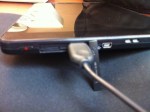
The pictures above illustrate the proper port to connect a standard USB 101 keyboard on the Viewsonic G tablet. Although not an earth-shattering revelation, it is handy to know that a plugged in keyboard works quite well whilst running CyanogenMod.
Incidentally, I have connected both a keyboard and mouse using the port in concert with a small USB hub. Mouse behaviour scrolls a window (such as a browser) in the direction the mouse is moved. Clicks appear to nothing useful, so the keyboard seems the most useful peripheral to date for using this port.
Posted in Android Tablet Tips, Android Tablets | Tags: Android, Android Tips, CyanogenMod, keyboard, Viewsonic G tablet
 Deutsch
 Français
 Español
 Glasskeys


 glasskeys.com
I enjoyed giving yesterdays presentation on tablet computers. Thanks to all that attended this event.
I converted the slides to PDF format and have placed on a server for download. Get part one here, and part two here. Thanks again to Nic Covington for his great work, advice, and PR wisdom, for without his skills this would have never gotten off the ground.
Triad residents please feel free to join the Triad iPad & tablet computer user group, for an informal and relaxed meetup of like-minded tablet users. No fees, costs, or dues are required to join this group.
Share this:
Leave a Comment
Posted in Commentary... | Tags: High Point Public Library, Presentation, tablet user group, tablets, Triad, user group