Posted by: glasskeys | 01/28/2011

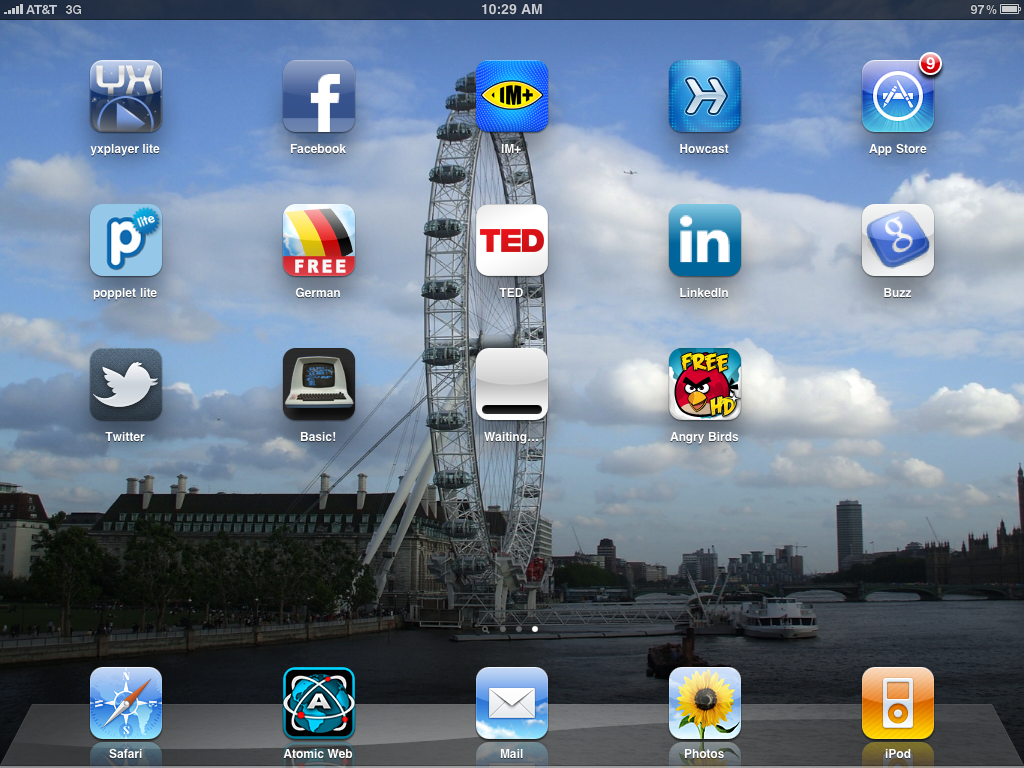
How to delete the "Waiting…" icon.

iPad "Waiting..." icon at centre of screen.

iPad "Waiting..." Icon.

Sometimes during downloads of applications from the App Store, an app will “hang” during download and you will be stuck with a “Waiting…” icon on your screen. This usually happens in one of three scenarios:

  • Download gets interrupted due to connectivity issues.
  • Download started for an app larger than 20MB via 3G.
  • iTunes needs an additional sign in after app download has started.

All three of the above scenarios have happened to me, and all three can be fixed.

Most of the time the “Waiting…” icon disappears after I connect my iPad to the computer that I use to “Sync” my iPad. I usually perform a full synchronisation in iTunes and the icon is gone afterwords 95% of the time.

Around 5% of the time an additional reboot is needed (see previous post).

Rarest of all, on only one occasion after all the steps mentioned above were done, did the “Waiting…” icon disappear only after I “signed in” again to the app store on the iPad.
Posted by: glasskeys | 01/27/2011

How to "reboot" an iPad.

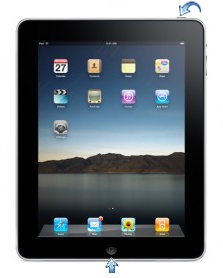
Reboot an iPad by holding down the two buttons until the white Apple logo appears.

How to "reboot" an iPad.

Sometimes an iPad freezes or “locks up” and will not respond to any touch movements, and on some occasions even turning the iPad off and on again will not “unfreeze” the device.

The solution to this problem is easy: Hold down the two buttons indicated at left until you see the white Apple logo, then release the buttons. Leave it alone until you see the "unlock" screen. I have waited for up to 5-7 minutes to see the unlock screen, but it a trick that has always worked consistently for me.

Posted by: glasskeys | 01/26/2011

Miso iPad application review.

Miso is a social networking site specifically tailored to share information on movies and TV programmes. You will not find clumsy attempts to sell your information to third parties, obnoxious adverts, or be paranoid about privacy settings on this site.

My first reaction upon hearing about it was a sigh of exasperation on news of the creation of yet another social networking site.

Miso does its work in a noble, responsible way. Account creation is incredibly simple and hassle free; including tying the account to twitter as I have done. I wish all social networking account setup was this easy. It requires much hard work & good design to make an interface this easy to use in an application. The search engine is excellent, it found my programmes and movies even with spelling mistakes thrown in for good measure.

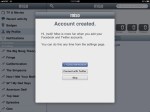
The only issue I could find was on the account creation screen (See Account Created image), where my account name wasn’t displayed properly and showed up as a null value. But my account was created with no hiccups, and this has probably already been fixed and my guess is that the name will properly display in the next application update. As this bug appears only on the Account Created screen, it is of minor consequence anyway.

The strengths of the Miso application are: catering to a specific segment of users, treating users as citizens instead of consumers, offering badges as a mark of community loyalty, and being easy and fun to use.

Verdict: A must have if you love to talk to others about movies, film and television. Get it here. Miso website.

Posted by: glasskeys | 01/25/2011

PBS iPhone application review.

I recently downloaded the PBS iPhone app and discovered that it was created by the same company (Bottle Rocket) that made the NPR application that I love so much on my iPad. I was expecting the great content that PBS produces to be available for the iPhone much like my NPR application does on my iPad.

Unfortunately, I discovered that for 3G users of this application there doesn’t seem to be much of a point in having it at all.

The screens are fast, responsive and smooth for the most part. The application also deserves praise for gracefully handling a brief disconnection from 3G service — which happens quite often for US mobile users, but I digress. This is a beautiful application, well designed, but it didn’t permit me more than watching brief 30 second previews using 3G service, and viewing local PBS schedules.

Accurate the schedule lists are, but I was able to find my local PBS schedule faster using a normal web search. So there isn’t much of a point in having it for 3G users (or anyone else in my opinion).

So what about wifi users you may ask? The application permits viewing full length via wifi! But in my circumstance (and I suspect many others), the places I would want to watch full length Masterpiece Theatre programmes in the presence of wifi would also be where you would find me watching PBS on a proper sized screen with my pajamas on and a glass of pinot noir within reach.

Verdict: I can’t be bothered with it.

Posted by: glasskeys | 01/24/2011

Papa Johns iPhone app review.

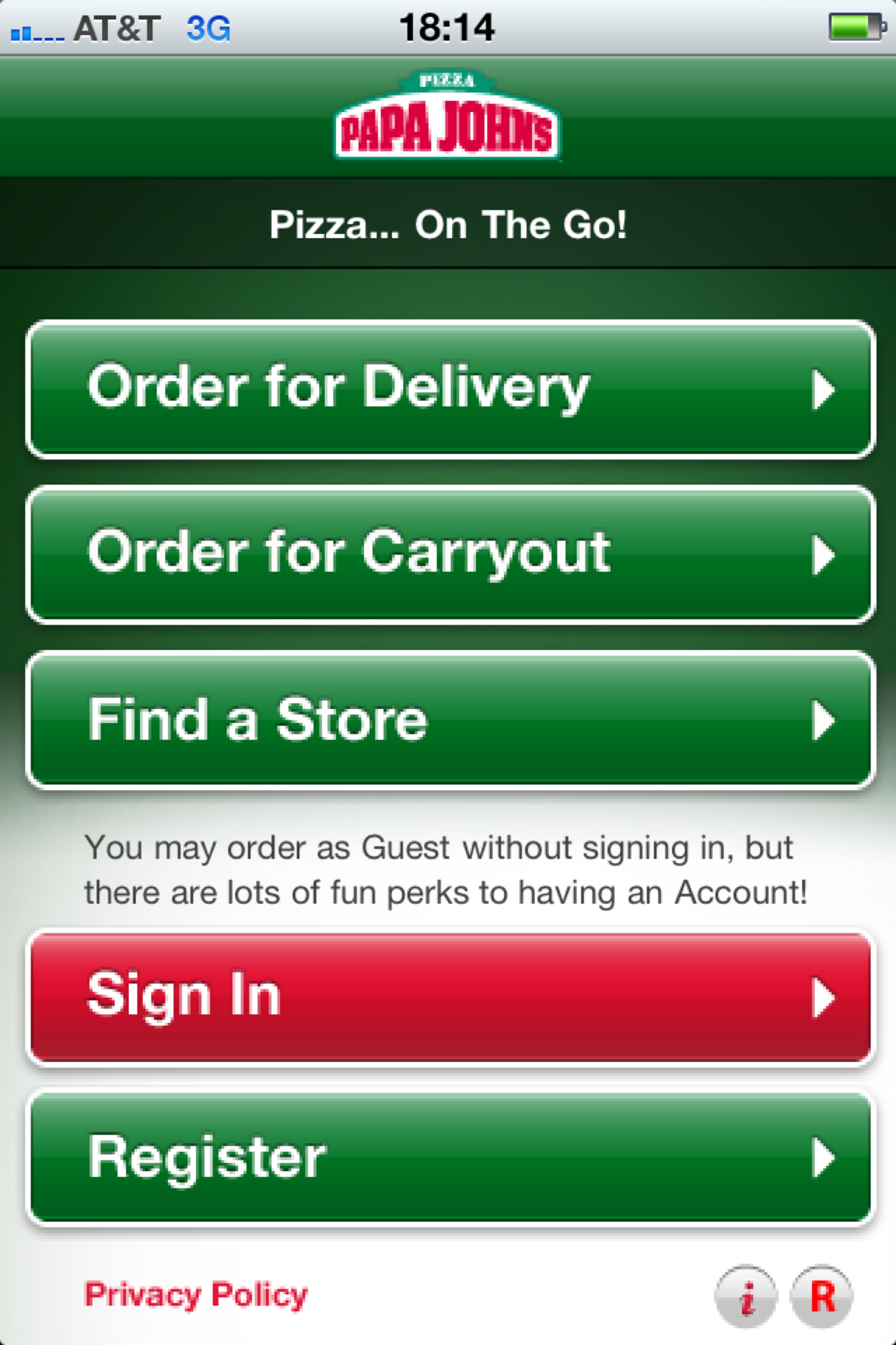
Papa Johns application start screen.

iPhone app.

I just ordered a pizza using Papa Johns iPhone application. Only a couple of things were confusing/buggy during the order process.

When entering my address, the control used to select “apartment” wasn’t intuitive–it appeared that you should simply type a number or letter into a blank field. The only other hiccup occurred when creating my contact entry. I placed the same email address in two email fields (email address & email address validation). However the application didn’t like that the first character of only one of the addresses was capitalized (it shouldn’t matter because email addresses are not case sensitive). So make sure the case of your validation fields match using this app. Silly bug to be sure, but it’s there.

Other than these minor issues, it was easy to pick food selections and had nimble response times. It appears Dominos has some catching up to do in the arena of mobile apps.

Posted by: glasskeys | 01/24/2011

Who says twitter is useless…

I recently started using an application called Miso (think Japanese soup) which is a social networking site specifically for movie and TV show fans. I found out about it from Leo Laportes’ twitter feed. Screenshots (already taken) and review of the Miso app coming soon.

Posted by: glasskeys | 01/23/2011

iFish Pond review.

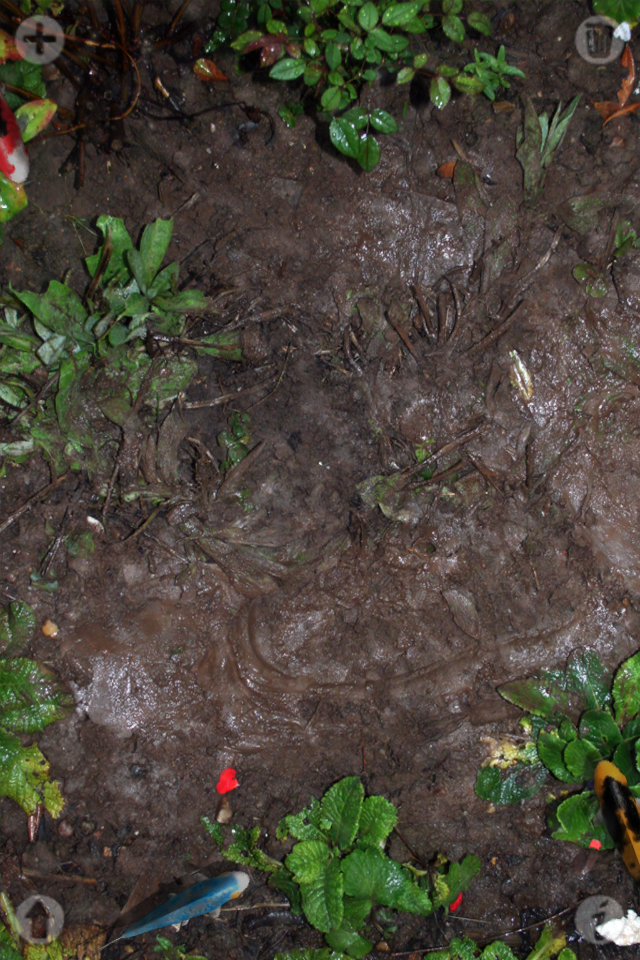
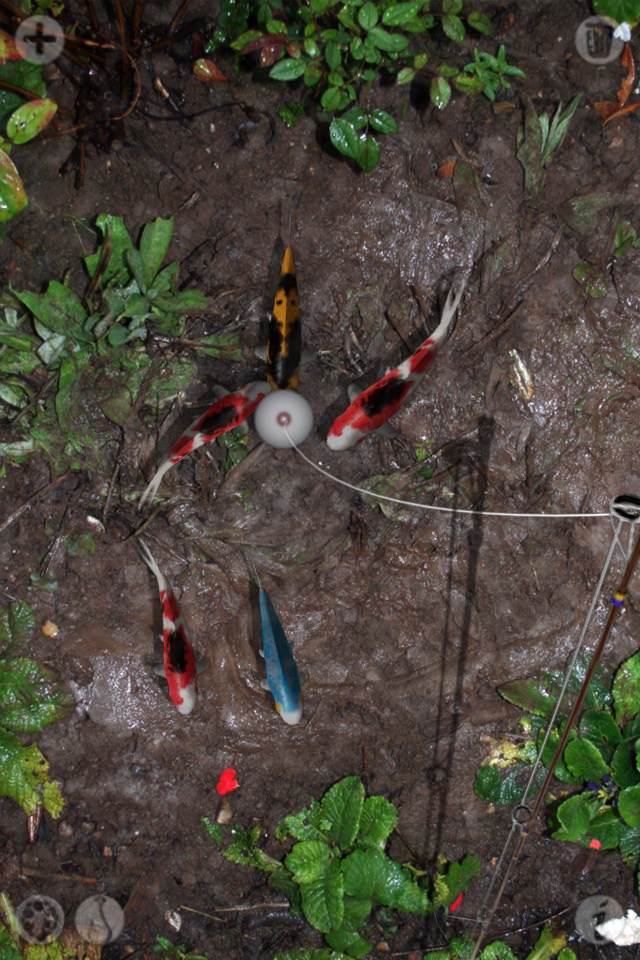
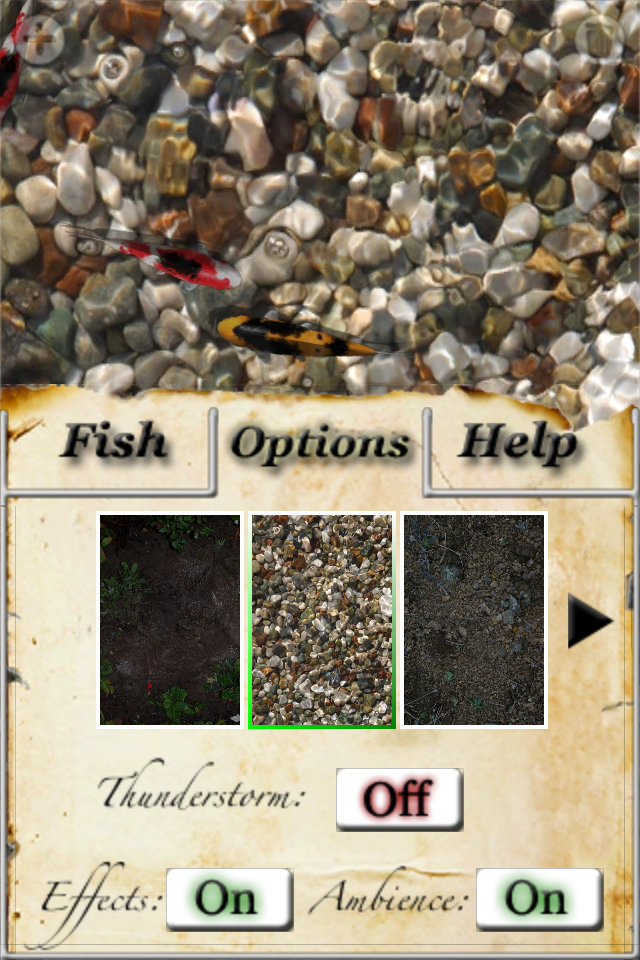
This is a review for an application by a reader named Lynn. She writes about going fishing with an iPhone app called iFish Pond. I took the following screen shots & had good fun playing with the application.

The issue that took a scant two minutes to figure out was the realisation that when the fish “strikes” the lure, I needed to set the hook using the “hook” button at the bottom left. During a fish strike the phone vibrates and adds another fun dimension to the game.

The natural sounds and realistic water effects are also excellent. In fact, I discovered that creating splashes and ripples in the water with my finger to scare the fish was almost as much fun as attempting to catch them!

Verdict: iFish Pond is a solid well-behaved application, and is great for providing a quick and fun diversion from your daily grind. It requires no steep learning curve to begin playing, and for the super low price of $0.99 USD the game is a great buy, and I recommend you try it.

Posted by: glasskeys | 01/22/2011

Work, shmurck!

Currently reviewing the mobile apps recommended by readers. I am having fun with quite a few of these.

In the near future, I will be posting some reviews interspersed with iPad & iPhone tips, one of these will explain a technique I worked out on how to view flash video on the iPad and iPhone. I am also going to try and procure some android devices to review, and will have guest contributors with incredible knowledge on these devices posting commentary as well.

Posted by: glasskeys | 01/21/2011

Bypass iPad 3G 20MB data limit part 5/5.

For the final part of this tutorial, we start the process of downloading our video file from its hiding place on the “cloud”.

Before you begin, I strongly recommend reviewing the download agreement AKA contract with your carrier (AT&T or Verizon at the time of this post) to ensure you will not get charged massive fees for downloading large files using the techniques described in this tutorial.

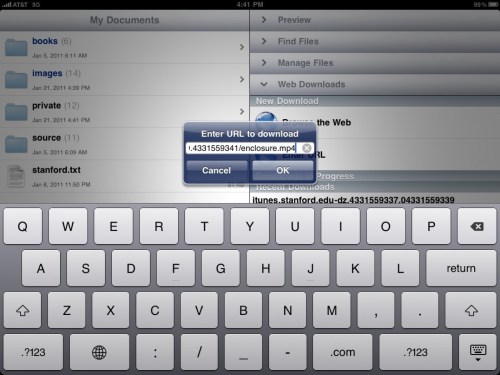
That said and done, we left off in the last post with the location of the file saved to the clipboard. Select the Web Downloads and tap Enter URL. You are prompted with a dialog titled Enter URL to download. GoodReader helpfully places the text placed on the clipboard inside the text box, so all we have to do is tap the OK button:

Enter URL to download

Read More…

Posted by: glasskeys | 01/20/2011

Bypass iPad 3G 20MB data limit part 4/5.

After you click OK to download the RSS file return to the main menu (My Documents) screen in GoodReader. Note the recent downloads section, and the long file name that begins with “itunes.stanford.edu-“:
My Documents
Read More…

« Newer Posts - Older Posts »

Categories