The first meeting of the Triad iPad & tablet computer user group was a great time.
Thanks to all of those that attended & participated in the fun, I for one really enjoyed meeting all of you.
Next meetup is on Saturday, February 19, 2011 @ 11:00 AM
The first meeting of the Triad iPad & tablet computer user group was a great time.
Thanks to all of those that attended & participated in the fun, I for one really enjoyed meeting all of you.
Next meetup is on Saturday, February 19, 2011 @ 11:00 AM
Posted in Announcement
The following walk-through will show you how to change your iPad keyboard to match your native language.
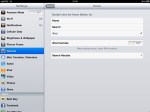
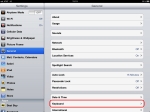
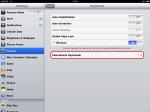
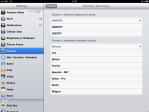
To start open Settings, then tap General and Keyboard. The Keyboard menu will appear with general keyboard settings presented, tap International Keyboards at bottom.
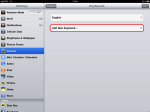
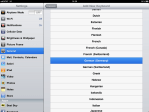
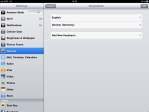
Tap Add New Keyboard… and select a language from the vast list available. Tap the name of the language to make the selection. The new keyboard language name selected will immediately appear on the Keyboards screen. To remove a keyboard language from this list tap the Edit button, then the “-” button to the left of the layout that needs removed. A Delete button will appear, tap this to remove the layout.
To further customise the layout, tap the language and a veritable cornucopia of language specific options are presented. (see German keyboard options image)
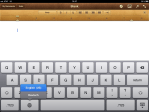
Tap the Globe key placed at the left of the space-bar to change keyboard layout “on the fly” (see Changing keyboard language image). The name of the language selected briefly appears on the space-bar after selection has been made.
Many experience difficulty setting up a wireless keyboard to use with their iPad. The following walk-through will assist you in doing this.
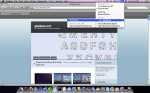
First, if you have an existing wireless keyboard that you use with a computer, you need to “unpair” or disconnect the device so it will be free to use with your iPad. (See Mac Keyboard Settings image). On some occasions I have had to turn bluetooth off on the Mac if my iPad is nearby, before the iPad is able to find the keyboard.
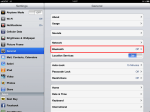
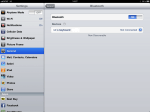
To add a wireless keyboard for use with the iPad. Tap Settings, then General, then finally Bluetooth.
Turn Bluetooth On, then select the proper keyboard in the device list.
I recently updated the Huffington Post reader application to the newest 2.2 Beta version via the App Store. Although it is clear that the Huffington Post takes its users’ feedback seriously and the software is a Beta release, there are still a couple of issues that remain yet until this application will be ready to be considered a fully polished release version.
As mentioned earlier, user feedback was taken, digested, and the option to enable Synchronized Scrolling was listed as a top feedback request by users of the application. Synchronized Scrolling enables all ribbons of story categories to be scrolled concurrently, in contrast to the “ribbon only” behaviour of prior versions.
As an example, if the Top Stories ribbon is scrolled to the left all other ribbons on the page are scrolled the same amount to the left as well. (a Three Musketeers’ implementation of scroll behaviour). I personally found that with the Synchronized Scrolling feature enabled, the response was very laggy due to the additonal overhead. So much so, that I immediately returned to Customize and turned it off.
I suppose I could be considered an “old school” reader, as the colloquial American expression goes.
Next item on the customization agenda: Themes. I found the dark theme was a bit sombre for my tastes, so I decided to get wild and switch to the White Theme. Read More…
Posted in iPad, iPad Applications | Tags: apps, iPad, Review
Many users of the iPad & iPhone have at various times have expressed frustration at the inability of the iPad, iPhone and Touch’s to view flash, especially flash video. This tutorial will show you how to view flash video — provided you have a direct link to the flash video in question.
For this walk-through you will need two applications:
1.) yxplayer2 lite, which is free.
2.) GoodReader, which costs a <sarcasm>whopping $2.99</sarcasm> on the App Store. If it wasn’t for Skype, (which I use to phone my beautiful lady everyday), it would be my favourite application. So many things can be with this one tool that I find myself using it constantly.
NOTE: I am not associated with any application mentioned or reviewed on this site.
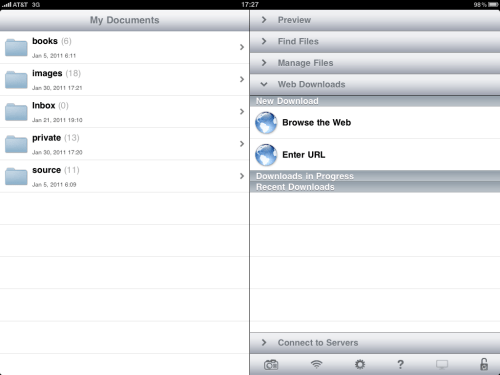
We start by opening GoodReader. Tap Web Downloads, then tap the Browse the Web button:
Posted in iPad, iPad Tutorials | Tags: Flash, Flash video., GoodReader, iPad, iPad Tutorial
The following videos are links to flash video files (which are needed for the upcoming tutorial) of the song: "Is this the way to Amarillo?".
Tony Christie graciously allowed his catchy song to be used by Comic Relief; a non-profit charity in Britain that helps needy people world-wide. Peter Kay (and many others) provided their formidable talents to produce the first video for the charity. It was an instant hit in Britain & I think you will find it funny. The second link is a live version sung by Tony Christie and it is quite good.
Help the guys out and donate to Comic Relief.
Link 1: Peter Kay mimed version. (tiny file size, lower quality, some audio sync issues)
Link 2: Live version by Tony Christie. (higher quality)
Posted in iPad, iPad Tutorials
I just created a “Meet Up” group for people in the Triad area of North Carolina, USA to meet and show off their tablet computer devices. All tablet users are welcome regardless of device.
Show up even if you don’t have a tablet device, or are just curious about this exciting new world of computing. OK that was a bit OTT; come on out, everyone is welcome.
Here is the link for those that missed the first time I plugged it. ;)
Posted in Announcement | Tags: user group
I am going to start posting more reviews of reader submitted applications & start writing an application that I need. This will be an app for the iPad & I will distribute it GPL.
Posted in Commentary..., iPad Applications, iPhone, iPhone Applications | Tags: apps
Last night I was decided I was going to write a review of “The Daily” iPad application and noticed it requires version 4.2 of IOS. So I started thinking about how a person would be able update his or her iPad IOS version, if one had no wi-fi or traditional internet connection available. No connection includes both the iPad and the iTunes “docking computer” and the only connection possible being 3G.
An interesting Gedanken experiment to be sure.
I started with this idea and started faffing about with it in the late hours of the night and discovered it is possible, once again using my favourite iPad Swiss Army knife known as GoodReader. Details will be posted soon.
If you bore of GoodReader related posts; never fear, I have some Atomic Web Browser, & Skype tips & tricks up my sleeve as well.
Share this:
Leave a Comment
Posted in Commentary...