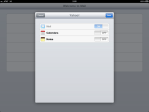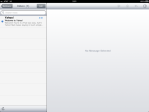
In the last part of our tutorial we left off with our full iOS file downloaded and residing in GoodReader’s My Documents folder. Today we will copy this huge file to our Mac, then backup our iPad before we update iOS.

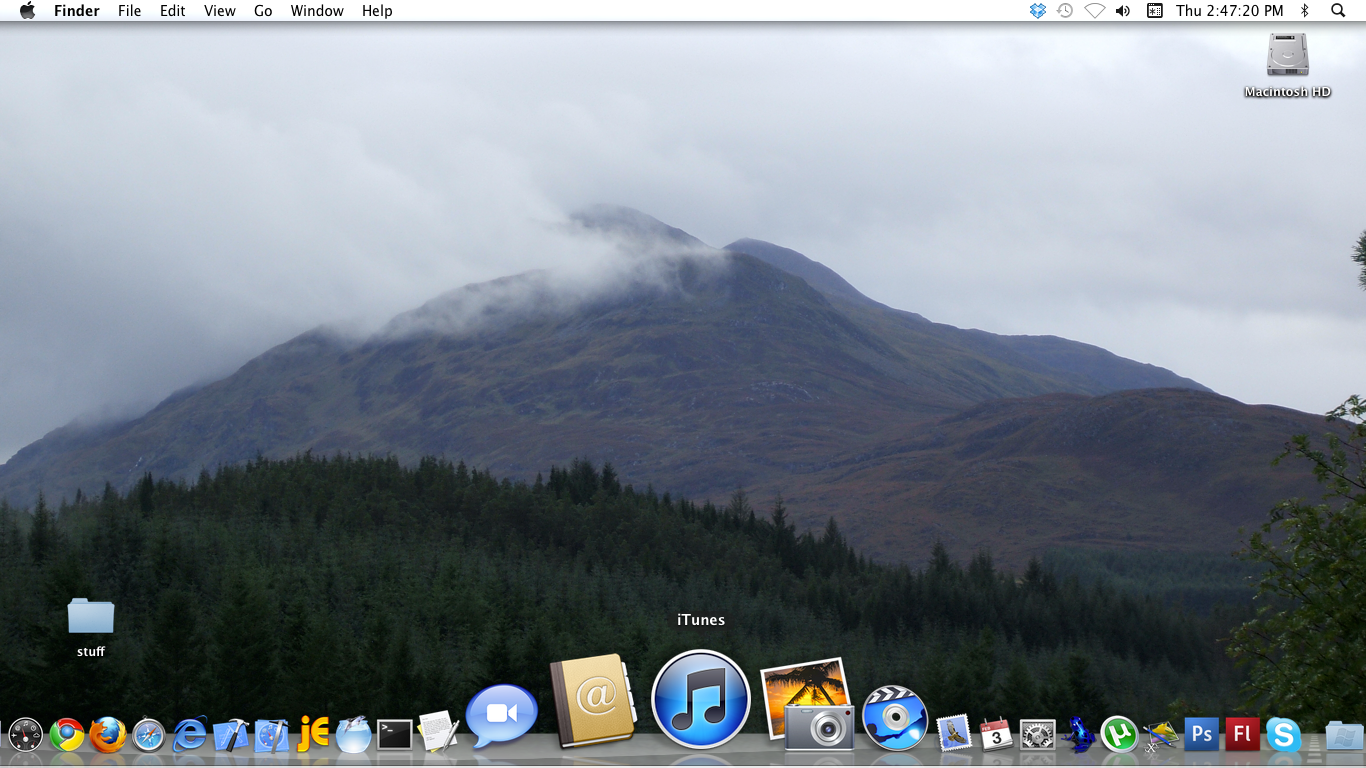
First plug-in your iPad to its iTunes “home” computer. On most systems iTunes opens automatically when the iPad is plugged into its USB port. However each system varies, so you may need to open iTunes manually on your system. The screenshot below shows the iTunes icon in my dock:
iTunes shown in Dock.

Read More…

This tutorial is intended to demonstrate it is possible to download iOS via the iPad, using only iTunes on the desktop to check and authenticate (not download) the update with Apple.

I will be using the iPad to download the large update file from Apple — the official Apple version — and a tethered iPhone to perform the quick verification process which is required when updating iOS.

Primarily this advanced tutorial will be of interest to the following users:

  • Those whose desktop computer with iTunes has no high speed connection to the net.
  • Those who have the unlimited monthly data 3G contract with their iPad, or have a data plan with minimum 560-570 MB remaining on their monthly bandwidth allocation.
  • Those that have a mobile they can tether to their desktop computer or have 3G hotspot available so that iTunes can quickly verify the update.
  • Those that have GoodReader and like using it to do interesting tasks, such as transferring files to your Mac & downloading large files.
  • Those that have an old iOS version on their iPad and want multitasking.

Keep in mind, at the time of this writing AT&T charges $15 (USD) for each 200MB that exceeds your data contract allotment. So depending on your circumstance, the download could cost you between $15-$45 USD or more if you exceed your contract data plan limit. So please check the contract with your carrier and the amount of data you currently have remaining in your monthly “allotment”. Don’t say I didn’t warn you.

This is an advanced tutorial, recommended for technical readers. If you are new to the iPad, Mac OS, etc. you should probably sit this one out. We all have to start somewhere, so don’t feel too bad.

Reviewing requirements, you must have the following: iPad 3G, phone or hotspot you can use for the fast (low data requirements) iOS verification step on your Mac, and last but not least, have GoodReader installed on your iPad.

So without further adieu lets begin the iPad update to iOS 4.2 (or higher) the 3G way.
Read More…

Posted by: glasskeys | 02/15/2011

Announcement.

Nothing major. I just paid to remove adverts & have added a new tag cloud. I am happy about accomplishing both & am glad my readers will no longer need the services of Ad Block on this site.

Posted by: glasskeys | 02/15/2011

How to change browser identity on the iPad.

(To view a larger image with more detailed description tap or click its thumbnail.)

On some occasions, a non-tablet or non-mobile web layout view is required. This is due to web sites that require the use of Internet Explorer for reasons that can only be the result of the illogical, byzantine & troglodytish output of American corporate “design-by-committee” reasoning.

Many of these sites, particularly the web sites of multi-nationals and banks, are the “problem children” of the modern web, notorious for producing mediocre web design, a result of the same type of sound judgements that cause world-wide financial crises.

The following paragraphs demonstrate how to help fight back the powers of the “this site requires flash” headless monster, better yet — headless chicken — and its similarly styled “this site requires Internet Explorer” brethren known as the corporate web site.

To start, this walk-through requires the use of a great browser known as Atomic Web Browser. This is another of the great iPad & iPhone applications. One of the many cool features of the browser, (like tabbed browsing) is that it provides the user the ability to spoof a remote web site into thinking it is dishing its timely, sage content to an Internet Explorer based client or personal computer.

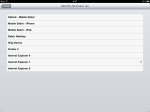
To change this setting in the Atomic Web Browser, tap the Gear icon at top, then the Settings button at the bottom of the menu. In the next menu tap Identify Browser As that is located in the General Settings section. Next lies the (not so) difficult task of picking “Internet Explorer 7” in the list of browsers. Finally, tap the Settings, then Close buttons found at top to finish and return to the main browser window.

The browser identification can be restored to your original identification when you are finished using the “problem site”.

Incidentally, Atomic Web Browser also supports Ad Block — another reason to “check it out”.

Disclaimer: I am not associated with any software mentioned on this site.
Posted by: glasskeys | 02/13/2011

ColorSplash iPad app review.

(To view a larger image with more detailed description tap or click its thumbnail.)

ColorSplash is an image editing program primarily designed to do one task. It allows you to easily create colour highlights of a photo, and allowing you to greyscale the rest of the photo. Photo effects like these are also all the rage these days.

ColorSplash is one of the best applications for the iPad I have seen to date. It has a clear use in mind, provides a very easy way to accomplish its goal and is mind bogglingly simple to use. The “Red Dot” tool is extremely useful, as well as “display brush” for large brush sizes. The other tools are also easy to understand and use, and the toggle from Color to Gray brush editing is idiot-proof. Zooming for fine-detail work implements the pinch manueover familiar to any user of the iPad. This the same technique used for “zooms” whilst viewing photos. Moving an image took half a minute to get used to, I used two fingers for both zooming and moving the image about.

Also brilliant was the short and useful video that quickly provides a tutorial on how to use the application.

Only one thing could possibly be improved: The “Display brushtip while painting” option is effectively useless using smaller brushes. I would have preferred the option to “offset” the brush tip a short distance from my finger. This is needed so the tip would be able to be seen for the “small nooks and crannies” that need the smaller brush sizes and more precise control.

But as my final images show, this is a very minor issue and a very small obstacle to overcome. A small annoyance, and not insurmountable.

Verdict: Get it, get it, get it.

Again, please note: I am not associated with any application reviewed on this site.

Posted by: glasskeys | 02/11/2011

How to show alternate keys on the iPad & iPhone.
An iPad alternate key menu.
iPad alternate keys.

Todays post du jour is a quick and dirty tip on how to quickly type characters sporting umlauts, diacritics, accents or other disturbed sounding “extras” that make it sound as if your keyboard is in need of a good therapist or a visit to the Mayo clinic.

As an example, hold and press down on the “u” key without releasing, you will be presented a list of other keys to chose from. I find sliding my finger up and over to the key I wish to use, then releasing works best. The following characters were typed using this very technique: ū, ú, ü, û, & ù.

Posted by: glasskeys | 02/10/2011

Skype & surf: Do both together on the iPad & iPhone.

(To view a larger image with a more detailed description tap or click its thumbnail.)

Many iPad & iPhone users do not know it is possible to be speaking to another Skype caller whilst surfing the web at the same time.

I; of course, will be more than honoured to show you how I do this.

First get Skype, setup your user name, account, ad nauseum. After this fun is finished, open Skype, login, and initiate (or receive) a call with someone you hopefully wish to speak with.

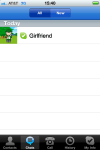
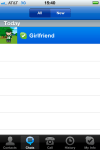
Once you are happily & audibly conversing away with the remote party, tap the Chat button and select the remote callers name to initiate a chat session.

The “trick” is to enter a web address in the type message here box, and hit the Send button. Skype will helpfully underline the link for you, all you (or the message recipient) have to do is tap the link and you will then be “surfing the web”.

I have to go: 1996 just Skype’d me and wants its lame catch-phrase back.

Posted by: glasskeys | 02/09/2011

How to change Notes font on the iPad & iPhone.

(To view a larger image with more detailed description tap or click its thumbnail.)

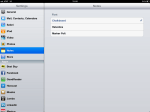
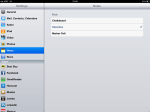
The following walk-through demonstrates how to change the default Notes font.

First, open Settings then tap the Notes found in the list on the left hand side of the screen. A small list of fonts will be presented at right: Chalkboard, Helvetica, or Marker Felt.

I for one detest the default font of earlier Notes versions, the Market Felt font, and feel it deserves a special place in Hell aside Comic Sans MS in the Hereafter. Here’s hoping they “shuffle off this mortal coil” soon, as both fonts drive me mad.

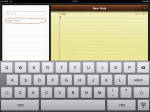
Continuing on, to select a new font simply tap its button, then open the Notes application (you may need to tap the “+” button at top right to create a blank note) and begin typing to test your selection.

Posted by: glasskeys | 02/08/2011

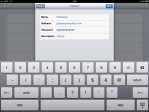
How to setup email on the iPad.


(To view a larger image with more detailed description tap or click its thumbnail.)

During my last tablet user group meeting, I noticed many new and beginning users had not setup their email accounts to be used with the Mail application on their iPads.

I enquired why this was so, and many were unfamiliar with the tech vernacular particular to email and therefore unsure on how to proceed.

This walk-through will help new iPad users to break the bonds of a dormant Mail app and seize the power of email. Yes OTT, maybe exceedingly so.

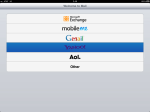
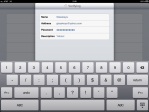
To begin, find the Mail application emblazoned with the white envelope and tap to open. Next, tap your email provider, such as Google, Yahoo! or AOL. This is where you normally go to read your emails. For example, if you have a gmail.com or gmail.co.uk email address choose Google. For the purposes of this exercise I will illustrate using a real Yahoo! email account; setup in America, using the email address glasskeys@yahoo.com .

The most important detail to remember is to be sure to enter your email address and the password you use to login to your email absolutely correct. Otherwise Mail will unable to verify with your provider and not allow you to finish the process. Continue through each screen by tapping either the Next or Save button.

The screenshots above provide a nice easy walk-through of this process: tap (or click) the first image to view a large sized description of each screen. To view the next “slide” tap or click the link for the next image located below and to the right of each image.

A final note: the Mail application is “configured” on its initial use, you will not have to repeat this process each time you wish to view your Inbox, email messages will appear immediately after opening the Mail application.

Posted by: glasskeys | 02/07/2011

How to create icon groups on the iPad & iPhone.


(To view a larger image with more detailed description tap or click its thumbnail.)

One of the great new features of IOS 4.2+ is the ability given to create application groups. The following walk through presents an example of how to do this step-by-step.

First, begin by selecting applications that would be best grouped with others. Social networking, productivity applications, and games would probably be useful to group together for a majority of iPad & iPhone users.

Next, press and hold down an application icon until all the application icons “dance”. Slowly move an icon toward another that you wish to group together. Once the icon is placed on top of the other, the border of the underlying icon will change, indicating a group can be created.

Shortly thereafter, a screen will presented in which you can change the name of the group to match your favoured description. This is done by tapping the white text area, changing the name, then tapping the blue Done key on the keyboard. Finally, press the Home button to complete the group creation process.

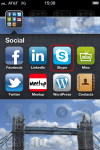
Application or icon groups have a dark cloth appearance, and are easily distinguished by a silver metal border.

To remove an application from a group, open a group icon by tapping it as normal. Then press and hold an icon until the “dance” begins and drag the application from outside the dark cloth background onto the “see-through” desktop above.

(Use the tag cloud at right to view similar topics. If you like this post please +1 it.)

« Newer Posts - Older Posts »

Categories