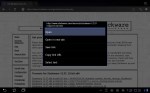
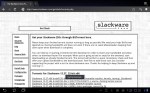
Windows 8 Consumer Preview now available for download.
If you wish to download the ISO image instead of the standard install you may find the Microsoft USB/DVD Download Tool handy if you wish to burn the image to a USB stick.
Developers also get a host of free goodies all easily found via the Dev Center for Metro style apps page or directly from the Dev Center download page.
Posted in Announcement | Tags: Announcement, developers, Metro, tablets, Windows 8, Windows 8 Consumer Preview
How to change email text color on the iPad.
Recently, a reader named Amir asked a good question pertaining to email text formatting on the iPad: “How [could one] change the font size and forecolor when writing new emails in iPad?”
I had a ready response for the font size portion of his question, the changing the colour of email text portion of his question was another matter altogether.
And so I began an investigation, quickly determining that the built-in mail app bundled with the iPad doesn’t support colour text and so this led me investigate alternatives starting with Gmail.
The Gmail support page titled Formatting, fonts, and colors provides the answer assuming that Gmail is used as one would use it on a desktop machine with a web-browser such as Chrome, Safari, Firefox or IE. The support page provides a brief explanation of text formatting features available if the Google Labs feature in Gmail called Default Text Styling is enabled.
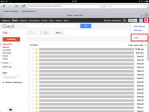
This of course wouldn’t do much good on an iPad…unless the view mode could be switched from the mobile view that Gmail normally uses by default on the iPad to a desktop view mode. A technique suggested by Glasskeys reader Ilan in the How to create or delete GMail folders on the iPad & iPhone post provides an easy way to do this. His comment briefly explained how one can switch the default view mode in Gmail on the iPad by scrolling to the bottom of the left pane and tapping the “View Gmail in Desktop” link.
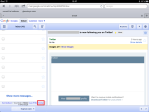
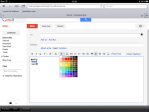
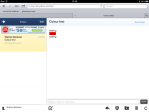
Consulting the screenshots above can give you a step-by-step of the entire procedure: Turning on Gmail desktop mode, enabling the Lab option, composing an email with text colour formatting changes, and finally how the email appears whilst reading with another email account such as Yahoo!
Posted in iPad, iPad Tips | Tags: email, gmail, iPad, iPad tips, text color, text colour
TEDx at Wake Forest
Today I will be attending TEDxWakeForestU, an independently organised TED event at Wake Forest.
I will be making periodic tweets and Google+ posts during the event throughout the day, you may also wish to follow the official Twitter link @TEDxWakeForestU.
On a related note, one of my first app reviews on glasskeys.com was the TED application for the iPad. I can now happily report that the bugs mentioned in the review are now fixed.
Posted in Announcement, iPad, iPad Applications | Tags: apps, iPad, TEDx, WFU
New search feature.
Due to popular demand, I have listened to your suggestions and have added Search to Glasskeys.com – now located below the Author section at right. Danke!
Cheers,
Stephen
Posted in Announcement | Tags: Announcement, Search
Using the Downloads App on Asus tablets.
![]() |
![]() |
![]() |
||||
| Tap the Sort By button. | Sorted by size. | Tap Last Month to retrieve history. | ||||
![]() |
![]() |
![]() |
||||
| Last Month dialog options. | Tick file(s) then Action button. | Action dialog. | ||||
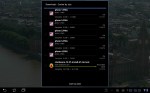
Recently upon flipping through the screens of applications on my Asus Transformer (TF101), I decided to play about and investigate the oft-overlooked Downloads app. Although I have seen the Downloads icon before on countless occasions whilst using my Transformer, I have admittedly not given it much thought and always made a mental note to “check it out in the near future”.
Playing around with the app has given me appreciation for this handy little utility. The ability to resume app downloads, look at download history spanning multiple months, and a rich selection of action options available for downloaded files warrant a well deserved place in your stable of Asus tablet utility apps.
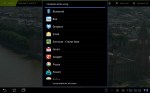
Consult the screenshots above for a simple walkthrough of sorting the download list and options available in the Actions menu.
Posted in Android Tablet Applications, Android Tablets | Tags: Android, apps, Asus tablets, downloads, EEE Pad Transformer, TF101
How to use Find My iPhone to find your lost iPhone or iPad.
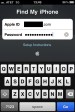
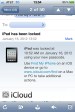
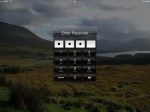
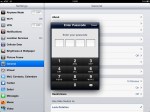
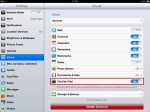
On release of iCloud and iOS 5, Apple added features to help customers recover lost or misplaced iPads and iPhones. If there is a remote possibility that you may need to recover your beloved iOS brethren at some point in the future, use the following instructions or consult the screenshots for an example illustrating how I was able to locate a “lost” iPad.
To use this helpful feature, first ensure that Find my Phone or Find my iPad is enabled. Toggle the switch ON, located under the iCloud category in Settings. If this category is not found in Settings you will need to upgrade to iOS 5 or higher. During the upgrade ensure to properly register an iCloud account, as you must have a working account to use the Find my iPhone/iPad feature set. Consult this post on how to determine your iOS version.
If locating a missing iPad or iPhone there are two options to choose from: The first is using another iOS device to locate a missing iPad/iPhone with the Find my iPhone application. The Find my iPhone App is found here on the App store.
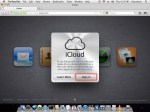
The second option is using another Mac or PC to browse to the iCloud website, where the Find my iPhone feature is available as an option. Please keep in mind that the missing iPad or iPhone must be registered with an iCloud account and have the Find my iPhone or iPad setting switch toggled on. The iCloud page URL is www.iCloud.com.
Regardless of method chosen, and upon locating your missing device(s), the Remote Lock and Remote Wipe options will be available. I initially choose the Remote Lock option so that a numeric passcode must be entered before the device can be used. Remote Wipe on the other hand is generally considered a last resort because the protection of data instead of recovery of the device is the higher priority. Consult the screenshots above for instructions on locating a lost iPad, locking remotely with a passcode, and how the passcode was turned off after the iPad was recovered.
Posted in iPad, iPad Tips, iPhone, iPhone Tips | Tags: Find my iPad, Find my iPhone, iCloud, iPad, iPad tips, iPhone, iPhone Tips, Lost iPad, Lost iPhone
How to use aTorrent – the native BitTorrent client for Android.
Some time ago, I needed to download a driver file that was only possible to retrieve via BitTorrent, and since that time I have periodically been checking up on the availability and reliability of native BitTorrent clients for the Android platform.
I mainly discovered that most Android “clients” (and I use the term loosely) mainly permit one to instruct a home desktop computer to download a torrent, then stream the content or file to the Android device in question. Since I consider the whole concept tedious, I kept my eye on a real Android BitTorrent client app named aTorrent. As with most software, kinks get worked out over time, and at this juncture, I consider most of the major issues with aTorrent to be worked out and the best native client available for Android tablets.
First and foremost, if you are thinking about using aTorrent over cellular or mobile connections, I wouldn’t bother. You could string a gold-stranded USB cable directly from your tablet to the destination hard drive and be more cost-effective. Due to very nature of the BitTorrent protocol, you are connecting to multiple machines at various times for pieces of the file or files you are downloading. This means a huge amount of communication is required to determine “who has my next piece”, and a huge bill your greedy telco will gleefully charge you if you opt to use BitTorrent using cell data. I highly recommend using the app on an Android device with a fast, reliable WiFi connection. This is doubly true in America, where most mobile data connections generally are not fast or reliable.
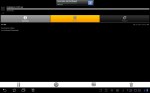
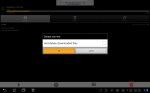
Continuing on, to download say a Slackware Linux DVD image, you first need the .torrent file. This is the file that tells the client app the size of the download, name and number of the files to download, as well as helping to keep track of the number of bite-sized pieces that remain before the all important 100% download completion goal is reached. Upon downloading the .torrent to your tablet or mobile, browse to the save location (usually in /sdcard/Download), tap the torrent, and aTorrent will open it and begin the download.
I have been using this app on my Transformer to grab Linux distros, programming source, tools, etc. for some time now and it passes with flying colours. Some mobile users are reporting lags around the 30% completion mark, but I believe those have been corrected with the latest version, and I have yet to experience a “show stopper” on my Transformer running Honeycomb. View the screenshots above for the “step by step”. This walks-through from saving the .torrent file, opening, downloading and how to delete a .torrent file with additional descriptions.
Verdict: Get the free copy of aTorrent with adverts here from the Android Market or the no advert pay version using this link.
Posted in Android Tablet Applications, Android Tablet Tips, Android Tablets | Tags: Android, Android Tips, apps, aTorrent, BitTorrent, EEE Pad Transformer, Magnet Torrent, Slackware, TF101, wifi
Using the Wired Magazine app on the iPad.
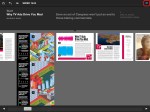
Occasionally one likes to sit back and enjoy a good read. Since tablets are ideal for this activity, it is nice if a favourite magazine reproduces regular print based content for a tablet, and adds extra features best suited for a tablet. Wired has done an exemplary job in this regard adding 360 degree views of objects, video clips, sound snippets and other interactive niceties for their iPad edition of the magazine.
If you are unsure if you want to purchase a full blown subscription or pay for only one, Wired has graciously given selected editions of the magazine away and available as free downloads as the screen-shots above illustrate. The only major downside to the whole experience is waiting for the massive size of the editions to fully download as they are most often in excess of 350 MB. Wired has thought of this scenario evidently — you may view some of the edition content whilst the download is in progress.
Verdict: Try out Wired Magazine available from the App Store here.
Disclaimer: I am not associated or employed by any company producing software reviewed on this site.
How to use Google Currents on the iPad, iPhone, and Android tablets.
Many users of Android or iOS tablets and mobiles are aware of Flipboard, but have yet to experience Google’s alternative offering named Currents. It offers similar functionality, simple interface and a host of content available for perusal. It also offers an easy mechanism to add an RSS feed of your favourite blog or website.
Although the images in this application walk-through were taken on an Android tablet, the screen and menus are identical for both iOS and Android users. There are screen shots of the application on the iPad and iPhone at the end of the walk-through.
First things first — Google Currents must be installed on your device. If using Android use this link to install from the Android Market. If using an iOS device (iPad or iPhone), use this link to download Google Currents from the App Store.
Please also note that Google Currents is currently a free app for all Android tabs, iPad and iPhone.
Posted in Android Tablet Applications, Android Tablets, iPad, iPad Applications, iPhone, iPhone Applications | Tags: Android, apps, Flipboard, Google Currents, iPad, iPhone, RSS
eBook Info Session today at High Point Public Library
Be sure to take along your eBook reader, tablet, or laptop, as there will be help available to provide assistance to get your device connected.
Read about the event here for more details and contact information.
Posted in Announcement | Tags: Announcement, eBook, High Point, iPad, Kindle, library, Nook, North Carolina Digital Library, Triad