(To view a larger image with a more detailed description tap or click a thumbnail.)

Although the Asus EEE Pad Transformer TF101 is my favourite Android tablet by far, I have noticed pauses and lags occasionally whilst using the detachable keyboard. Although not a deal-killer, it has become annoying enough to motivate me to find a solution.

Poking about in the maze of settings and keyboard options that could potentially impact entry delays, I rapidly discovered turning off every typing assist feature not only improved performance, but were features I preferred disabling anyway. This is most likely because I live in front of a keyboard, and find things of this nature more annoying than helpful. However if you find word completion, auto-capitalisation, and related typing shortcuts handy, you may wish to skip this tip, or selectively choose the keyboard options that you to tick off (so to speak) in Settings.

View the screenshots above for a step-by-step guide on each feature I turned off, thereby completely eliminating typing pauses.

NOTE: Entering text on some AJAX based web pages, you will still experience odd lags. This will not be caused by your tablet, they can and will be caused by a variety of factors such as network latency, connection speed, remote web server speed, page programming techniques (JQuery I am looking at you), etc.

Disclaimer: I am not associated or employed by any company producing software or hardware reviewed on this site.

(If you like this post +1 it!)

(To view a larger image with a more detailed description tap or click a thumbnail.)

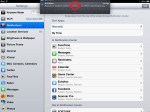
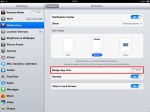
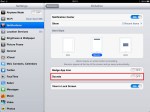
New to iOS 5 are more robust notification features, such as a tray that enables one to view notification messages from multiple apps simultaneously by sliding a finger down from the top of the screen. You may also change the relative “pecking order” of notifications by enabling the Sort by Manually option found in set in the Settings app in the right hand section after selecting the Notifications category.

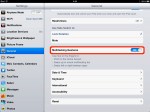
More notification improvements with iOS 5 include allowing one to turn off icon badges – the small red circles that appear in the corner of app icons. Not only visual but aural notifications can also be tweaked. My personal favourite notification “turn off” feature: the ability to disable the annoying sound notifications used to excess by needy apps that constantly crave attention. These miscreants include such apps as Twitter clients, IM’s, and virtually every other variety and category of social networking app.

To disable (or enable) badge and sound notifications, open the Settings app, then tap the Notifications category at left and under the heading labelled Notificaion Center in the right section, select the application name that needs notification tweaking. In the example screenshots above, I changed the notification settings for the Echofon app (a Twitter client), and turned off badges and yes the sounds (I later turned the badge switch back to the ON position).

(If you like this post +1 it!)

Posted by: glasskeys | 11/18/2011

How to wirelessly update iOS on the iPad and iPhone.

(To view a larger image with a more detailed description tap or click a thumbnail.)

iPad and iPhone users running iOS 5 and above now have the ability to install system updates if connected via Wi-Fi. If you are not currently on iOS 5, consult this image on how to update your iPad or iPhone to the latest and greatest iOS version. If you are unsure on how to find your iOS version, view the images above of the Settings screens, or read this post that explains two different methods to find the iOS version currently on your iPad or iPhone.

If you already have updated your device to iOS 5, and see the the purple coloured Software Update notification whilst using a WiFi connection, simply tap the Details button. The Details window actually enables the upgrade if the Install Now button is tapped. This button appears below the descriptive list of fixes and changes contained in the upgrade.

If you opt to install, a Terms and Conditions dialog appears – riddled with indecipherable legalese – tap the Agree button to continue the installation. Next, your iPad or iPhone will validate your device with Apple, download the upgrade package, and reboot.

Finally, the install progress bar screen is displayed, and when done your device will open the Home screen as normal. You may then opt to check the version number using the Settings app mentioned earlier.

(If you like this post +1 it!)

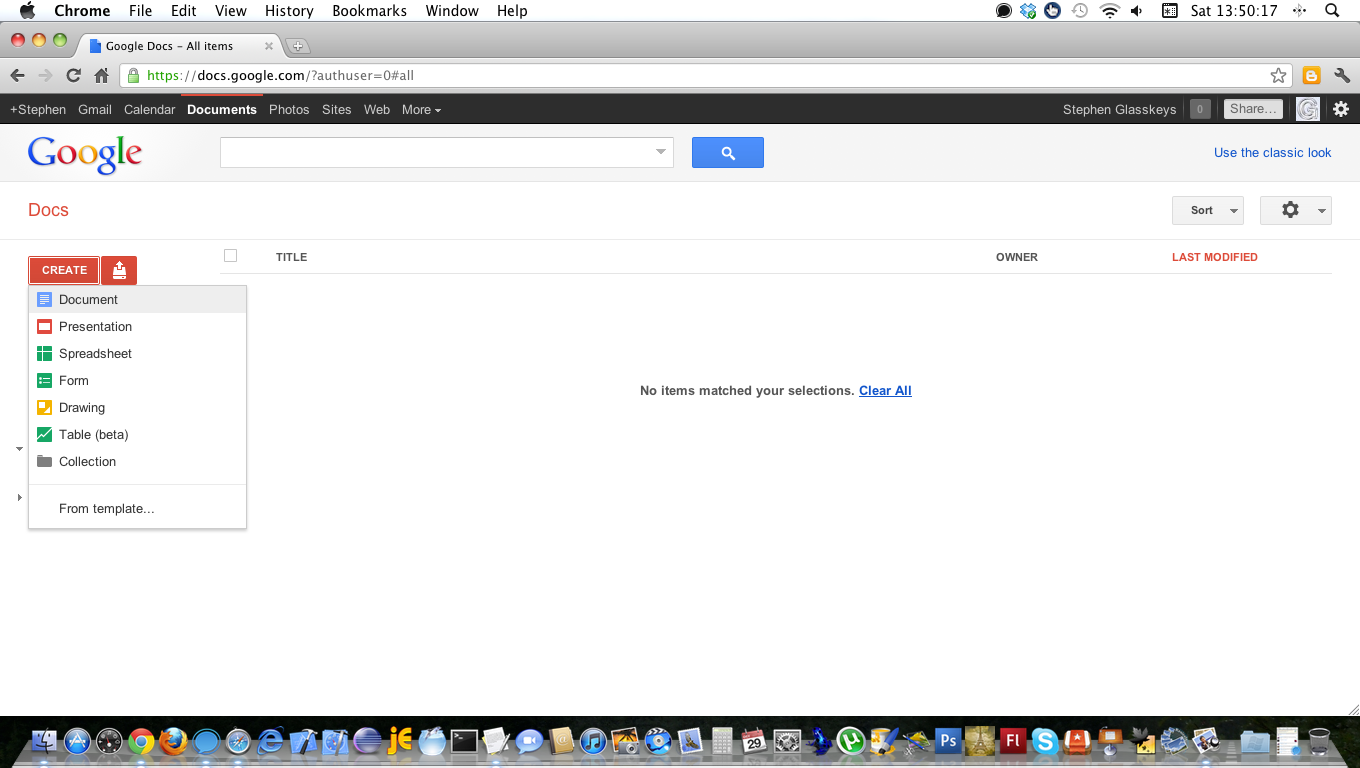
Since the introduction of iCloud with iOS 5, it appears that most new applications now include the ability to interact with this service. After using iCloud with different apps, it became apparent that I needed to find a way to import Google Documents to iCloud. This tutorial will provide a real-world example on the steps I did to accomplish this.

First things first — three prerequisites.
1) To follow the steps used in this tutorial, you must first have the application known as GoodReader. I have found many ways to use this very handy application on the iPad and iPhone and consider it one of the key tools in my iOS arsenal of “can’t live without” apps.

2) If you plan on following the final (but not required) editing steps, Pages is highly recommended for text editing and should also be considered one of the “necessary” apps — especially on the iPad.

3) The final – but most import prerequisite is ensuring your device(s) have been set up to use iCloud. Apple has a easy to follow guide here.

After installing and iCloud setup the first step in this tutorial is about finding or creating a Google document to import into iCloud:
Create a google document.

Read More…

Posted by: glasskeys | 11/11/2011

Poll: Should I bother getting a Kindle Fire?

I love tablets, but they do starting taking up space about the house. So today on Glasskeys I am asking my readers if I should bother getting a Kindle Fire. A simple poll, but if you have any ideas on other tabs to get instead of the Kindle Fire — be my guest and leave a comment.

Kind regards,
Stephen

(To view a larger image with a more detailed description tap or click a thumbnail.)

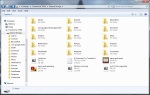
Ever since Google decided to use the MTP protocol, there has been some slight confusion for Windows and Mac users on how to transfer files to and from their Honeycomb and Ice Cream Sandwich (ICS) tablets to their computers.

One MTP related topic for Windows Android Honeycomb & ICS users largely overlooked has been how to safely eject these devices as is commonly done with devices connected via the USB port. The easiest way is to look for the Eject MTP menu function after clicking the Safely remove hardware and eject media icon on the Windows taskbar. Consult the screenshots above for a mini-walkthrough of the entire process of connecting, browsing, and safely disconnecting an MTP tablet whilst using Windows 7.

(Use the tag cloud at right to view similar topics. If you like this post +1 it!)

Posted by: glasskeys | 10/31/2011

An iOS 5 iPhone bug.

(To view a larger image with a more detailed description tap or click a thumbnail.)

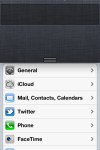
Today’s images show an iOS 5 bug I discovered taking screen-shots of the Settings screen whilst in the process of pulling down the Notification menu. After the screenshot, the Notification pull-down freezes in place, even after a single press of the Home button. I have only been able to cause this behaviour in Settings, although I briefly tried to duplicate this issue in other apps with no success.

A solution though is simple: Turning the iPhone off and back on again does the trick quite nicely.

(If you like this post +1 it!)

Posted by: glasskeys | 10/28/2011

How to use the built-in dictionary in iOS 5.

(To view a larger image with a more detailed description tap or click a thumbnail.)

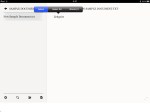
One of the many changes to iOS 5 has been the addition of a dictionary available for use in virtually any app that utilises word or text editing functionality. The screenshots above illustrate this feature whilst using Notes on the iPad and iPhone as well as a great third-party app known as PlainText.

To use this feature, select a word using either the “double tap” or “tap and hold” method, and the new Define button will be visible in the floating button menu. On the iPad, a text bubble will appear with the dictionary definition, tap outside the bubble to resume editing. The iPhone handles dictionary functionality in a slightly different manner: a separate window will open with the dictionary entry, tap the Done button at top right to resume editing after reading the definition.

(If you like this post +1 it!)

(To view a larger image with a more detailed description tap or click a thumbnail.)

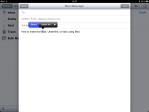
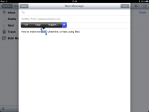
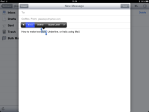
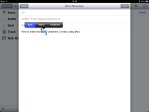
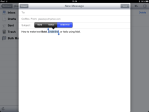
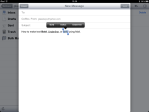
Due to popular demand, iOS 5 has greatly improved email text formatting and now permits the user to apply bold, italics and underlining to messages.

As with many things tablet oriented, use the tried and true tap and hold technique on a word or text to show selection options. Immediately after selecting the desired text for formatting, tap the ▶ (right triangle) button in the floating menu to see more options. A button with the caption of “BIU” will be visible, tap this button and finally three formatting buttons – Bold, Italics, and Underline will be available for use.

Tapping one of these buttons will immediately change the style of the selected text to match. Consult the screenshots above to see a step-by-step walk-through of this process in action.


UPDATE 2012-03-01 – Consult this post if you need to send emails from your iPad with different foreground or background colours.

(If you like this post +1 it!)

Posted by: glasskeys | 10/17/2011

How to use iOS 5 Multitasking Gestures.

This video above was created to illustrate the Multitasking Gestures available in iOS 5. For Apple Developers members, this functionality has been available since iOS 4.3, but not available to the general iOS user until now.

To ensure this functionality is enabled on your iPad with iOS 5, open Settings, select the General category, then toggle the Multitasking Gestures switch ON.

Enjoy using this handy feature and say goodbye to the Home button double-clicks.

(Use the tag cloud at right to view similar topics. If you like this post +1 it!)

« Newer Posts - Older Posts »

Categories