Posted by: glasskeys | 03/11/2011

Apple iPad 2 goes on sale today (US).

A reminder for those of you that have been living in the wilderness for the last 6 months: iPad 2 goes on sale today in the US. Apple stores and Target are among the major high street shops selling the device, if going to an Apple store be prepared to queue up, as there will most likely be many potential buyers.

Sale of the iPad officially begins at 17:00 EST (5:00 PM) at most – if not all – retail locations. The iPad 2 ships in Britain on 25 March.

I have produced this video demonstrating the new four finger gesture multitasking technique added to iOS 4.3

I start with the traditional double-click method of opening the Multitask ribbon. The list of currently running iPad applications is shown.

I then demonstrate use of the “four finger” technique to swap running applications on the iPad. Swiping left to right, and up and down methods are demonstrated. Enjoy the video!

UPDATE: Some users are reporting they cannot perform these actions after their iOS 4.3 update. If this is the case on your iPad, open the Settings application, select General and toggle the Multitasking Gestures switch to the ON position.

UPDATE 2 (03/11/2011): After sampling Apple store demo iPads, I found out currently the multitasking feature is limited to those with Apple Developer membership.

There are currently two techniques I use (most likely many more) to view page source on a regular basis on my iPad and iPhone.

The easiest way is to use Atomic Web Browser, and use the built-in view source menu option inside the browser itself. On many occasions, it gives you a link option to Get Full Source, which you can use to view all the source and javascript used by the current page. Tap the button in the top right of the window, and the page source is helpfully pre-pasted in an email window. I usually copy all the source to paste in another text editor.

The second way is to use the GoodReader application, and enter the URL of a website using the Enter URL (to download) function in the Web Downloads section of the application. After the page is downloaded and saved, select and change the name of the HTML file using the Rename button in the Manage Files section. Replace the extension of the file with .txt, and tap the blue Done button when finished renaming. Then simply tap the newly named file in the My Documents list and view the page source!

UPDATE – 03/14/2011: Rob’s Blog has an excellent technique on how to do this in Safari.

NOTE: If you need to view screen shots of these steps in action, tap the Read More.. link below this paragraph.
Read More…

Posted by: glasskeys | 03/10/2011

Xcode 4 available for download.

Xcode 4

Apple has made XCode 4 available for download on its web site.

There are numerous changes in this version, and Apple has provided a “Whats New” page listing the new features. One of the most welcome changes is integration of all of the tools into a single window.

Posted by: glasskeys | 03/09/2011

How to update your iPad or iPhone to iOS 4.3

(To view a larger image with more detailed description tap or click its thumbnail.)

March 11 was the day that Apple had officially announced the release of iOS 4.3. However I have just read news that version 4.3 has been released today.

To update your iOS device(s) to version 4.3, open iTunes on your desktop computer, attach your iOS device (iPad/iPhone), and ensure it is selected in the Devices section, and click the Check for Update button (found on the Summary tab) in iTunes. iTunes will give you status updates and instructions to follow during the upgrade process.

Posted by: glasskeys | 03/09/2011

Adobe Photoshop Express for the iPad & iPhone


(To view a larger image with more detailed description tap or click its thumbnail.)

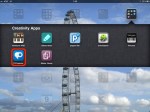
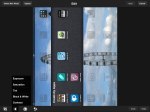
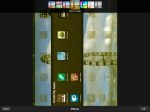
The screen shots above present a good walk-through on the Adobe Photoshop Express application for the iPad and iPhone.

Features for editing photos include resizing, cropping, rotating, colouring and tinting, special effects filters, a tool to straighten photos, upload to Facebook, and sending via email. Best of all it is free and available on the App store.

Verdict: Get Adobe Photoshop Express here.

Disclaimer: I am not associated or employed by any company producing software reviewed on this site.

Posted by: glasskeys | 03/09/2011

Twitter problems….

(To view a larger image with more detailed description tap or click its thumbnail.)

Recently I have had some problems with my Twitter application on the iPad becoming unstable. Immediately after starting the application on the iPad the application would crash, leaving me despondently staring at my Home screen and icons.

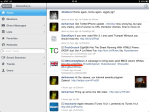
If you are having the same problems, I highly recommend you try Echofon as a Twitter client on your iPad or iPhone. I tried the free version for the iPad for a couple of days, and immediately liked the Echofon way of doing things, especially whilst reading web pages. In the screen shots above, I show myself opening a web page link received via tweet, and how it appears in the Echofon client.

I actually decided to purchase the application, which removes the adverts present in the free version, and at $4.99 (USD) it is a small price to pay for a reliable Twitter client.

Verdict: Select either the paid or free iPad versions here, or iPhone versions here.

Disclaimer: I am not associated or employed by any company producing software reviewed on this site.

After purchase of my Nook Color eBook reader, I became aware that the “Software version” (OS and other key programs) has been updated to 1.1.0 and it was available for download.

* * * UPDATE (May 02 2011) – Version 1.2.0 instructions here.* * *

This page on the Barnes & Noble website has instructions, click the Get Version 1.1.0 Today text so that they will appear.

To new users, some of the steps may be slightly confusing in the provided instructions. So I have provided a simple step by step walk-through to assist in these areas.

Read More…

Posted by: glasskeys | 03/08/2011

How to take a screen shot on the iPad & iPhone.

Press both buttons and release quickly.

Press both and release quickly.

Today’s quick tip demonstrates how to take a screen shot on the iPad & iPhone. Taking a screen shot is extremely simple, press the Home and Power buttons at the same time and release quickly. Both devices will make a sound similar to a 35mm camera (remember those?) shutter noise accompanied by a brief white flash of the screen.

Before you think your iPad or iPhone has gone pear-shaped after taking a screen shot holding the device landscape, be aware that it is normal for these devices to place the screen shot in your saved photos album sideways if you have the devices oriented landscape instead of portrait.

Tomorrow I will post reviews on some image editing tools you can use on the iPad & iPhone to manipulate these and other photos in your album.

(To view a larger image with more detailed description tap or click its thumbnail.)

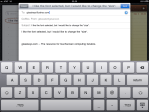
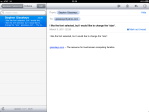
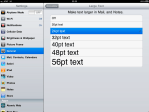
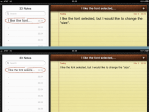
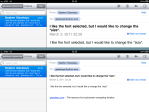
If you have ever found yourself squinting whilst trying to read text in Notes or Mail on the iPad or iPhone, this quick tip is just for you.

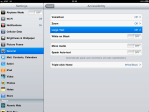
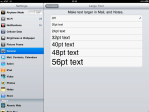
To change the font size, open the Settings application, select General, Accessibility, then Large Text. On the Large Text screen you finally will be able to select your desired font size from the ample list provided. The size you select will be made the default font size in Mail and Notes. Click the Home button to exit, or double-click to switch to another application.

NOTE: For those interested in changing the font Notes itself uses, read this post.

UPDATE 10/18/2011: iOS 5 now enables one to use bold, italics, and underlining in email messages. Read here.

(Use the tag cloud at right to view similar topics. If you like this post please +1 it.)

« Newer Posts - Older Posts »

Categories