(To view a larger image with a more detailed description tap or click its thumbnail.)

After purchasing my iPad 2 I was asked if I needed any accessories such as the new Smart Cover for my tablet-sized treasure. Although the new Smart Cover is indeed a clever design, I still prefer cases instead of covers, and designs that I personally find not quite so ugly and tacky looking.

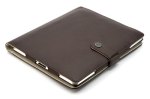
First, I will begin by mentioning the Saddleback Leather Company, recommended by a nice gentleman in queue at the Apple store recently. These well made leather cases are handcrafted with a 100 year guarantee, and at the time of this writing the company web site states the iPad 2 cases will be ready in early April 2011. My assumption is that the existing sleeves sold by the company would be sufficient for use with the iPad 2 now. To see the durability of these cases in action watch a soft spoken bloke named Dave trying to destroy an iPad protected inside a Saddleback Co. leather case.

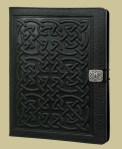
Next a recommendation by a friend, is a company named Oberon Design. They produce a variety of leather goods and offer many colours and designs for the original iPad, as well as the Nook and Nook Color among other devices. No word yet on the Oberon Design web site if or when iPad 2 cases will be available.

Yet another recommendation by a fellow iPad fanatic is from a company named Booq, makers of the the BooqPad Agenda for the iPad 2.

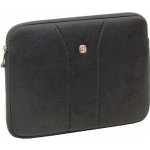
For those less inclined towards leather, I read that the Wenger Legacy Laptop Sleeve will protect an iPad quite nicely (see the review). The company also manufactures a similar case designed for eReaders such as the Nook.

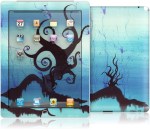
Another non-leather option is from a company called Gelaskins. Their solution is a gell based protection for the iPad and iPad 2 with many attractive patterns and designs by talented artists. Rare amongst iPad 2 case vendors, they also sell covers to protect only the back of the iPad 2. Gelaskins also enables you create your own design using one of your own custom images. They also have attractive skins for the Nook Color, there is one in particular I have my eye on.

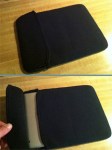
Finally, if you are either on a budget or waiting for a vendor to sell your favourite iPad 2 case, you can go to a local Dollar Tree, get a cheap case designed for netbooks, then make two small cuts to permit an iPad easy entry. Cost: $1 USD.

Disclaimer: I am not associated or employed by any company producing merchandise reviewed on this site.

After purchase of my Nook Color, I noticed many images were already loaded on the system. Although some look appealing, I really didn’t wish keep all of them, so I decided to delete them from the Nook.

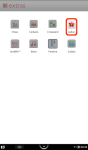
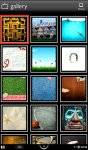
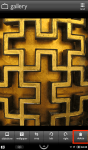
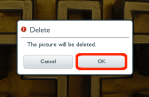
To remove factory installed images from your Nook, click the real button on the surface of the Nook Color, and tap the screen menu button at bottom centre. After the menu appears, tap the extras button. On the extras screen, select Gallery located at top right, which then opens a grid of images. Select the image you wish to remove, open the menu once more and tap the delete button on the right side of the menu. After tapping OK on the Delete dialog, the image will be permanently removed from the Nook Color.

Tap the top left screen shot above for a step-by-step view of the process.

Posted by: glasskeys | 03/22/2011

Use Speedtest.net to measure connectivity speed.

(To view a larger image with more detailed description tap or click its thumbnail.)

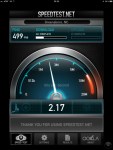
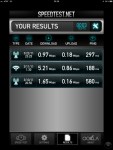
Today’s quick tip is on how to determine your bandwidth performance using a tool called Speedtest.net available for free on the Apple App store here. As using this app is very simple, the only thing I thought I should point out is that tapping the Results button shows a log of past speed tests.

Disclaimer: I am not associated or employed by any company producing software reviewed on this site.

Recently I was asked how one could create a GMail folder in the Mail application on the iPad or iPhone. The short answer: If you are only using the Mail application or Google’s Mobile Mail application on the iPad & iPhone — you can’t. However, faffing about on my iPad I found one way to accomplish this, the caveat being is that you must have a browser capable of setting the identity string. Since Atomic Web Browser is capable of doing this on both devices, this tutorial will illustrate how to accomplish this feat.

* * * * * * * * * * * * * * * * * * * * * * * * * * * * * * * * * * * * * * * * * * *
UPDATE March 28, 2011: I have found a way to do this without having to use Atomic Web Browser. Google Mail viewed using Safari on the iPad or iPhone supports a hidden option visible if you scroll to the bottom of your inbox message list at left called View Gmail in Desktop. Tap this link to view a screen shot of this well hidden feature. This means of course that you can tap this option using Safari, skipping the browser identity steps and start with the step beginning with: “Tap Create new Label“. Be sure you turn your iPad portrait so you will be able to see the label menu options.
* * * * * * * * * * * * * * * * * * * * * * * * * * * * * * * * * * * * * * * * * * *

Before we soldier on, you should be aware that Google Mail does not use email folders in the traditional sense, but implements the label concept. There is a difference, but since the Mail application on iPad and iPhone treats labels as folders, for purposes of this tutorial anytime you see the word “label”, mentally replace it with the word “folder”.

If you desire to know more about the differences betwixt the two, Google and others have done an admirable job explaining why labeling is used.

Read More…

Posted by: glasskeys | 03/20/2011

Charging an iPad without the wall charger.

(To view a larger image with more detailed description tap or click its thumbnail.)

I recently left my iPad connected for an extended period of time to my computer via USB cable. Despite the message at top right on my iPad screen stating it was not charging, after leaving the iPad connected for less than two hours, and unmounting from my Mac — I discovered in fact that it really was charging after all.

Posted by: glasskeys | 03/19/2011

Adobe Ideas for the iPad & iPhone.

(To view a larger image with more detailed description tap or click its thumbnail.)

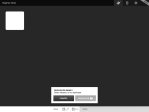
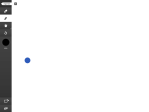
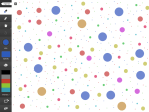
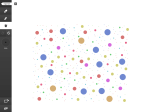
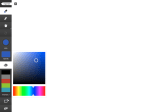
The screen shots above illustrate use of the Adobe Ideas application which supports many of the same features you would find in a full featured image editor. The use of the layers feature must be purchased, but as the shots above illustrate, there are many options available for free.

Verdict: Get Adobe Ideas for the iPad and iPhone here.

Disclaimer: I am not associated or employed by any company producing software reviewed on this site.
Posted by: glasskeys | 03/18/2011

Just a reminder…

North Carolina Triad area tablet users – a reminder: The Triad iPad and tablet computer user group meets Saturday March 19, at 11:00 am.

All tablet users (iPad, Android, Microsoft based tablets, etc.) or those interested in tablets are welcome to attend.

(To view a larger image with more detailed description tap or click its thumbnail.)

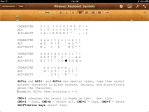
Today’s monospaced font edition of Glasskeys.com gives you a table to copy & paste into Notes or Pages to provide a reference of symbols and key combinations whilst using your bluetooth keyboard on the iPad. (Saving the second image above is another option)

NOTE: If copying & pasting into Pages use the Courier or Courier New fonts to space things nicely. I also pasted this into TextEdit on the Mac. Use Courier Font, Regular, with Font Size 14 for good results.


CHARACTER    § 1 2  3 4 5 6 7 8 9  0 – =
ALT          § ¡ ™  £ ¢ ∞ § ¶ • ªº º – ≠
ALT+SHIFT    ± € ‹› fi fl fi fl ‡ ° ·  ‚ — ±

CHARACTER    q w e r t y u i o p [ ]
ALT          œ ∑ ´ ® † ¥ ¨ ˆ ø π “ ‘
ALT+SHIFT    Œ „ ´ ‰ ˇ Á ¨ ˆ Ø ∏ ” ’

CHARACTER    a s d f g h j k l ; ‘ \
ALT          å ß ∂ ƒ © ˙ ∆ ˚ ¬ … æ «
ALT+SHIFT    Å Í Î Ï ˝ Ó Ô  Ò Ú Æ »

CHARACTER    ` z x c v b n m , . /
ALT          ` Ω ≈ ç √ ∫ ˜ µ ≤ ≥ ÷
ALT+SHIFT    ` ¸ ˛ Ç ◊ ı ˜ Â ¯ ˘ ¿


ALT+u and ALT+` and ALT+n are special cases, type then select another character to place accents, umlauts, and diacriticals above the character.
Example: ALT+n then striking o = õ

CMD+I advances the cursor in Pages as tab:      see     this.
CMD+Z = Undo, CMD+A = Select all, CMD+C = Copy, CMD+V = Paste
SHIFT+Arrow keys select text.

Posted by: glasskeys | 03/16/2011

iPad 2 initial setup tips.

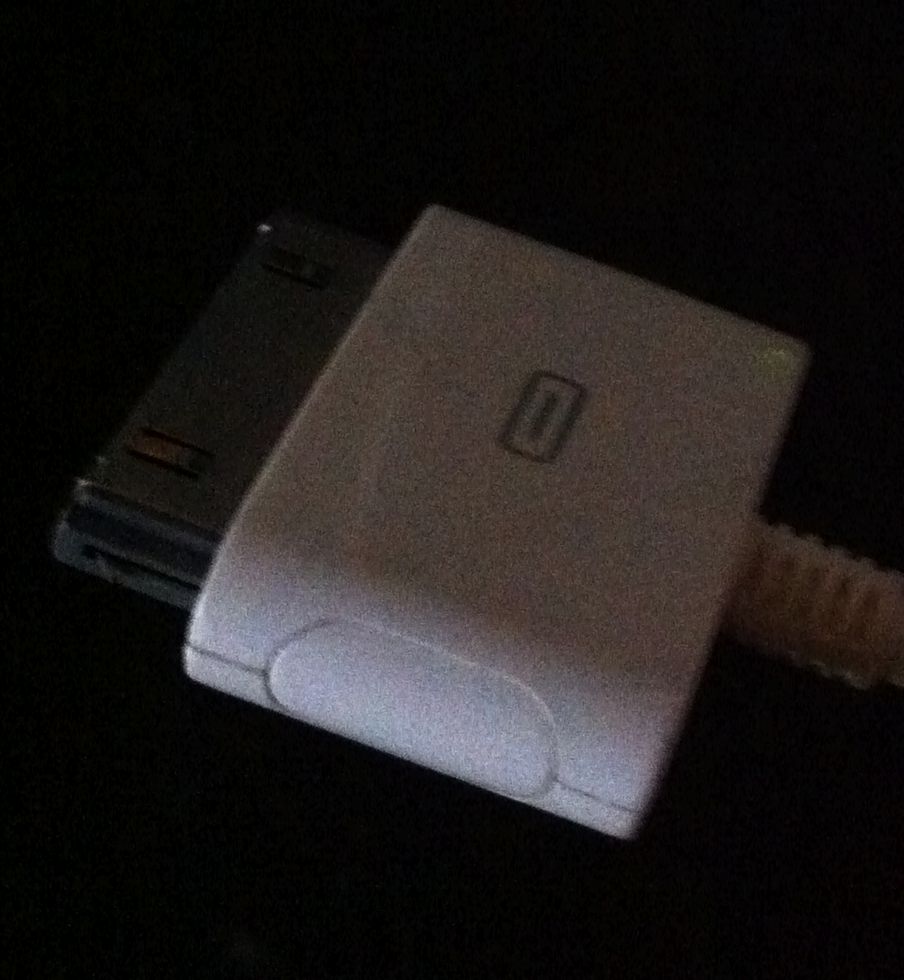
Third generation iPod USB cable.

Third generation iPod USB cable.

These are some quick tips I learned setting up my iPad 2:

  • If you already have an existing iPad or iPhone, update all the applications, then sync these apps with iTunes before you first sync your iPad 2 with iTunes. This saves time and bandwidth because it eliminates the app update that would have been required for your new iPad, and provides the added benefit of all your devices having consistent application behaviours.
  • I find the included USB cable hard to grab because of the curved outer edge on the iPad 2 and short connector. I also feel as if I am going to snap off the metal portion whilst removing or inserting into the iPad. I dug up an “old school” third generation iPod USB cable (pictured above), and find it much easier to use. Please remember to squeeze the side buttons before removing from your iPad.
  • If you setup a profile for the iPad 2 in iTunes from scratch, be prepared to redo your icon groups, icon locations and wallpapers.
  • Have all needed usernames and passwords within arms reach, because you will need them to configure email, social networking, or for any application that utilises login credentials.
Posted by: glasskeys | 03/16/2011

State of the Nook Developer Program: #DIV/0!

I have found three excellent sources of information on software development for the Nook Color. All three seem to be active and freely provide information to members of their development communities:

It seems a bit odd that this situation is occurring, and is not the normal way to build a development community by a company, because it is usually the company selling a device or software tool that has the most active online community. Perusing the official forums further, I discovered that annoyance with lack of information, and blatant disregard for questions on documentation, release schedules and other information have many developers extremely frustrated and at the boiling point.

Case in point: Ten days ago I placed a post on the Nook Developer forums asking for more documentation, source examples and other information on programming for the Nook platform that developer members are promised (see bottom of page) they will be provided before joining the program. This request is common practice in the IT industry & I assumed I would be provided the information in a forum post, or emailed the information, or told by a fellow forum member the location. I have yet to receive a response.

Developers are not the only group frustrated, the Nook customer base is now also becoming disgruntled they are unable to purchase the nifty apps from the Nook Application store as promised. Both groups are either endlessly placated with a “in the works” or “real soon now” as developers are.

Conclusion: If you want to do tablet development on the Android platform on the cheap, purchase a Nook Color and root it as Brett Arends of the Wall Street Journal did. However, if you are interested in stock Nook development, don’t even bother. The message is clear: You are not considered important enough for us to bother with.

Because the year is 2011 and companies or people who want real developer communities just do it. Ask this guy.

« Newer Posts - Older Posts »

Categories