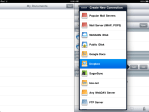
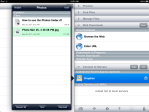
This tutorial shows how to configure Atomic Web Browser to use your Dropbox account and gives a demonstration of saving a PDF document found on the web to a Dropbox folder. This action then permits the file to be accessible for viewing later on a plethora of computing devices (desktop, tablet, mobiles).

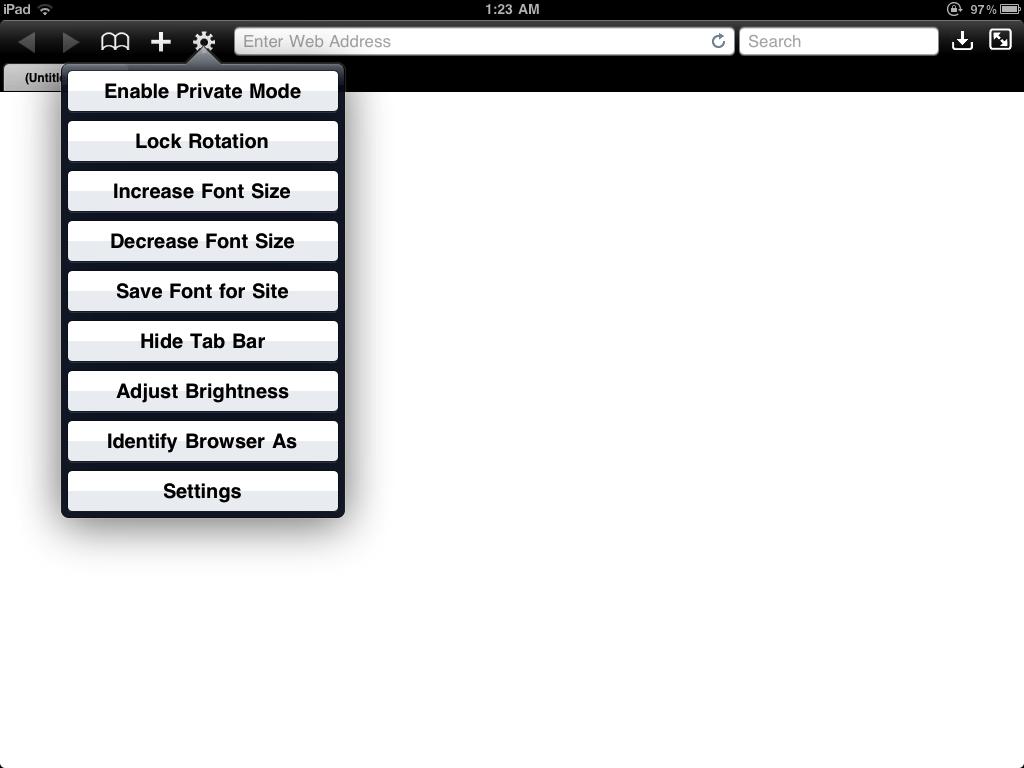
To start, Open Atomic Web Browser, tap the Gear toolbar button and select Settings:

Read More…

(To view a larger image with a more detailed description tap or click a thumbnail.)

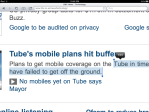
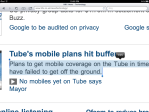
The following quick tip and shots above illustrate the easy way to copy and paste text from a web page.

In the example screens shown above I used Safari to open the BBC tech section to try and copy only the text from a small portion of the page. This action selected not only the text, but added a thumbnail image and other unwanted elements. By zooming in to the paragraph of text on the web page using the pinch technique, selecting text becomes a much easier exercise enabling surgeon-like precision. Generally I tap and hold on a single word until the blue handles appear, then position the handles over the text I need, and lastly tap the Copy button.

Posted by: glasskeys | 04/01/2011

How to save web page images on the iPad & iPhone.

(To view a larger image with a more detailed description tap or click a thumbnail.)

Today’s quick tip illustrates how to save an image in your Photos collection whilst browsing a web page in Safari.

If you see an image that strikes your fancy, simply tap and hold on the image in Safari and a menu will appear with a Save Image button. If you opt to save, a new image will be saved and placed in the Camera Roll album.

Today is World Backup Day, and a company named SpiderOak is giving away 5GB online storage accounts in honour of this event.

For those unfamiliar with the name SpiderOak, a good explanation would be to say that it is a “cloud based” service similiar to Dropbox, especially in the area of multiple platform support. What sets it apart from Dropbox is that it is made primarily for backup and synchronisation purposes, supporting a rich set of options such as inclusion and exclusion file-type filters.

Also unlike Dropbox, it does not require a special folder to be created on a host machine. For the paranoid in the audience, SpiderOak proudly claims that no one at the company (or others) can browse through your backup content on SpiderOak servers. This is because backup files are encrypted on the originating machine before they are transferred to the SpiderOak backup data servers, leaving a would-be snoop reading gibberish.

Conclusion – download the free SpiderOak client for the iPad and iPhone from the App Store here.

During account signup, in the Code if Applicable field, enter the promomotional code worldbackupday.

NOTE: I found out about the 5GB giveaway and promo code on Ashwin’s Blog.

Disclaimer: I am not associated or employed by any company producing software reviewed on this site.

Posted by: glasskeys | 03/30/2011

How to access or save Dropbox files with GoodReader.

(To view a larger image with a more detailed description tap or click a thumbnail.)

Todays quick tip illustrates how to configure GoodReader to access Dropbox, and an example showing how to move a photo saved on Dropbox to GoodReaders My Documents folder. Keep in mind, along with copying data from Dropbox storage, you may also move files downloaded with GoodReader to Dropbox.

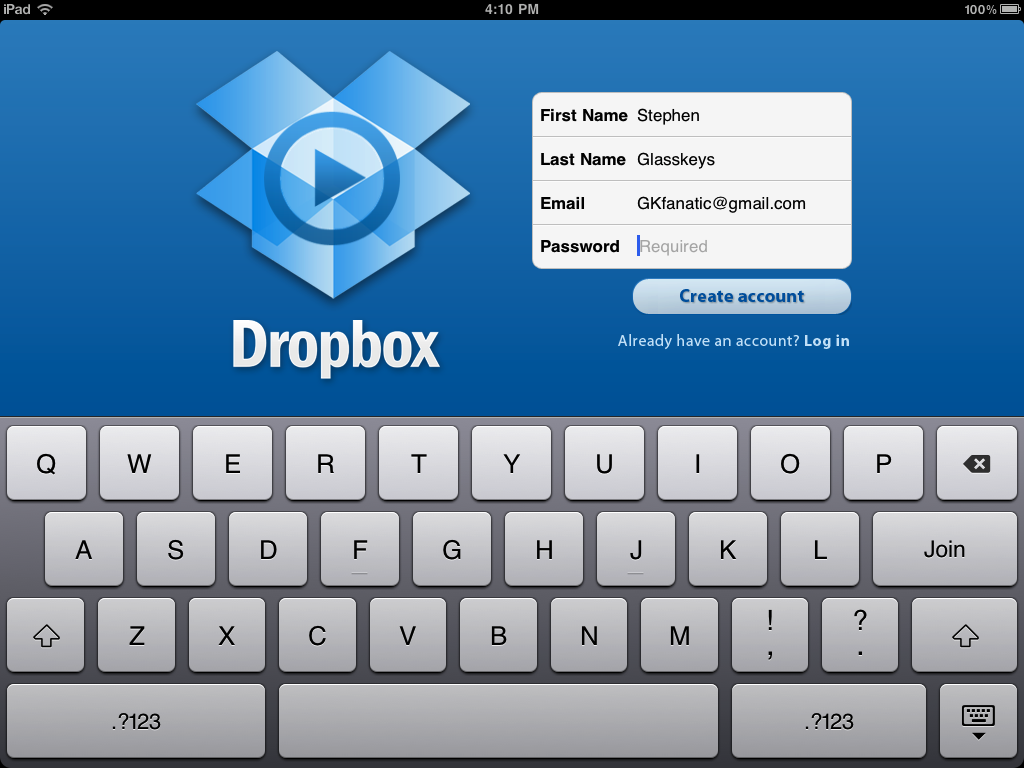
If you have ever been chagrined that you cannot use a USB memory stick storage with your iPad or iPhone, this tutorial will help you alleviate your annoyance. Although you will not be able to use a physical memory stick, Dropbox can help provide the storage you need accessible from any device completely free, effectively replacing the need for USB sticks. Dropbox gives you an offline storage area that can be used to upload, download, or share publicly (if you desire) any files you could place on a normal USB memory stick device. It can be used with the iPad, iPhone, Android tablets, & other phones. It also works with desktop and laptop computers such as the Macintosh, Linux computers, and Windows PCs.

To start using this free offline storage service first register for a free Dropbox account (Read the full post for the benefits of using referral links):

Read More…

My girlfriend wished to watch the “March Madness” games yesterday, so she installed the NCAA® March Madness® On Demand application and watched American basketball on the iPad. If “March Madness” is your cup of tea, it works quite well from what I understand, and it was provided free of charge.

Disclaimer: I am not associated or employed by any company producing software reviewed on this site.

(To view a larger image with a more detailed description tap or click a thumbnail.)

Many AT&T iPhone users are not aware they can block spam MMS messages on their iPhone. Although this is not an option accessible via the iPhone Settings app, it is possible to do via the AT&T Wireless website. For reasons unknown to most rational members of the Homo sapiens species, instead of linking MMS message filtering settings to a device listed under your existing AT&T billing account, you must register using another account with AT&T Wireless that uses your mobile number as the primary ID.

Here are some of the options the wireless account gives you:

  • Block all text messages sent to you as email.
  • Block all multimedia messages sent to you as email.
  • Block messages sent to your mobile at MOBILENUMBER@txt.att.net and MOBILENUMBER@mms.att.net.
  • Allow lists for e-mail addresses and domains.
  • Block lists for e-mail addresses and domains.
  • Ability to set email alias for your mobile.
  • Ability to set number of segments delivered to your phone.

The most interesting section is found at the bottom of the Blocking Options page:
Text messages sent via email can also be blocked directly from your handset. When you receive an email that you wish to block, simply reply to the email with the word “block” in the body of your message. The sender’s email address will be added to your Block List. Note: this does not apply for mobile-to-mobile text messages.

Particularly annoying though is the lack of any control over blocking regular text SMS messages. This means AT&T can bill you for spam text messages, psycho ex ______ that repeatedly text, or the acquaintance that annoyingly sends you a deluge of mildly funny jokes you read ten years ago on inter-office emails. This practice in my opinion is extremely dodgy, and unethical at best — but America isn’t known for having the best cellular networks and providers in the world anyway.

(To view a larger image with a more detailed description tap or click a thumbnail.)

Many iPad and iPhone users are not aware they are able to view Google Videos or save locally for offline viewing. Saving video locally is sometimes needed before taking long flights, visiting areas with poor 3G service (the continental US), or for use in a learning environment where waiting for a large video to download “real-time” is not practical.

Google Video was Google’s implementation of a video service to compete with YouTube before outright purchasing it late 2006. Since then most of the emphasis has been on YouTube, but a surprising number of full length educational videos, documentaries and hidden gems like the Google Technical Speaker Series are still found on the remnants of Google Video. For purposes of illustration, (and entertainment) I chose a talk in the Technical Speaker series given by a personal hero of mine Andy Hertzfeld for this tutorial.

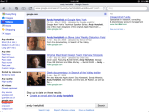
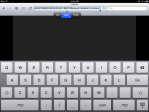
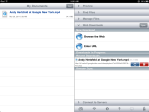
To begin, open Safari as normal on your iPad or iPhone, navigate to http://video.google.com. Type “Andy Hertzfeld” (without quotes) in the text field, then tap the Search button. Make sure that google.com is selected under the Any Source section. Tap the Andy Hertzfeld at Google New York link. Safari will now open the video. Select All and Copy the URL (web address) of the video from the white text field at the top of the window.

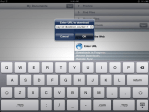
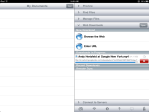
Now open the GoodReader application, tap Web Downloads, then Enter URL. The URL copied in Safari should already be in the Enter URL to download dialog, tap OK. GoodReader will then proceed to download the Google Video and will place the file in the My Documents folder when finished. To watch the video, tap the file name. Be sure to remove the file when done viewing it offline. This can be accomplished by opening Manage Files, selecting video file under My Documents, then tapping the red Delete button. Tap Done button to finish.

As always: I am not associated or employed by any company producing software reviewed on this site.
Posted by: glasskeys | 03/25/2011

Upcoming tutorials…

Currently working on two separate tutorials on how to download Google and YouTube videos to watch offline on the iPad/iPhone.

« Newer Posts - Older Posts »

Categories