(To view a larger image with a more detailed description tap or click a thumbnail.)

My post yesterday on web apps reminded me that it would be prudent to mention to my readers how one could make a shortcut icon to a web page or app appear on the home screen of their iPad or iPhone. It is probably one of the most overlooked features of Safari on these devices, yet extremely simple to do.

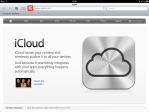
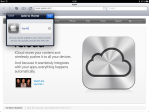
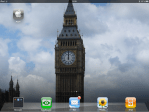
To create one yourself, open Safari, and browse to a web site, I chose Apple.com for illustration purposes. On the toolbar tap the button that has an image of an arrow surrounded by a rectangle, then tap the Add to Home Screen button in the list of menu options. In the Add To Home dialog, change the description if desired and tap the blue Add button at top right. You have now placed a “shortcut icon” that links to apple.com on your home screen.

On a related topic, you may need to create icon groups if you find your home screen becoming a bit cluttered with new hordes of invading shortcut icons.

(Use the tag cloud at right to view similar topics.)

Posted by: glasskeys | 06/22/2011

20 free web iPhone apps for the summer season.

(To view a larger image with a more detailed description tap or click a thumbnail.)

Yesterday summer officially began in North America, so I believe it is a good time to profile 20 free web applications for the iPhone that can be useful this summer season. All links will open the web application on your iPhone if you tap the links provided whilst using Safari.

If traveling you may wish to use to book a holiday using Orbitz, book a room at the Marriott or use Ou Dormir ? to find lodgings in France. To find a holiday on the cheap you might try Vacation Rentals on the Road if your travels are in Europe.

In Britain I have often used the TFA Journey Planner web app on my iPhone to find the best way to travel from Point A to Point B in London. Rounding out travel applications, a web-based World Time Zones app is available to use, a nice travel log web app appropriately named My Travel Log can help record your travels, or if you are hiking and really need to know your location – GPS Coordinates will show you where you are and let you easily copy GPS coordinates into another app.

If interested in wine or in touring a winery, I recommend using the WineWeb e-Marketplace. If you are American and cannot spend your pittance of allotted vacation days to use on a proper beach holiday, you can bring the beach to you using the Ocean View Cam web app.

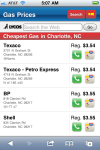
People are active during the summer — even going to local events can be costly due to petrol prices. These high-octane apps may provide some help finding cheaper petrol: Local Gas, or Gas Prices. Use the Gas-Cash-Ometer to help calculate your fuel use and costs.

Playing sport of all types is a popular summertime activity, but if you can’t get to the track, pitch or field use PennantChase Sim league to join an online baseball team, keep track of your favourite cyclists’ twitter feed using Cycling Tweets, or monitor UFC fighter standings with UFC.

If a more active participant in sport, Cardio Workout for iPhone can help manage your running, or you may prefer using cityRUNNR. You may also wish to check the weather before heading out, so use this clever little web app, and if staying inside on a rainy day, playing Gold Nuggets can help you while away the time.

Disclaimer: I am not associated or employed by any company producing software reviewed on this site.

Posted by: glasskeys | 06/19/2011

Presentation on tablets July 30th 2-4 PM.

High Point Public Library.

High Point Public Library

I will be giving a presentation on tablet computers at the High Point Public Library in High Point, NC on 30 July from 2-4 PM.

Details were finalised earlier today — I am quite pleased with the room selected for the presentation. Be sure to mark your calendars, the event is open for all.

(To view a larger image with a more detailed description tap or click a thumbnail.)

After recently attempting some workarounds to enable a bookmarking type of functionality with the sorry excuse for a PDF viewer that ships stock with the Nook Color, I decided instead to try one of the PDF viewer applications available on the Nook Color app shop.

In reality, a customer shouldn’t need to purchase a very good and freely available PDF reader for an Android OS based tablet (BeamReader springs to mind), especially one that touts itself primarily as an eBook reader. I suppose the profit & loss statement is of more importance to B&N than allowing users to use their device as a fully functional eBook reader without paying more for the privilege.

Given this bizarre situation, I chose to take a chance on a relatively inexpensive PDF reader that supported bookmarking — frankly any PDF viewer for use on a tablet based device that doesn’t support this feature is near useless and more bother than it is worth to use. ezPDF Reader I happily report does not fall into this camp and enables the Nook Color to be used as a proper PDF reader.

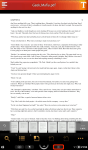
Upon starting the application the first time, a short initialisation procedure begins, and options at top enable you to search for your PDF documents by different methods. The easiest method upon initial use is the All PDF button: the app finds all PDF documents on your Nook Color organised by location. Open a folder in the resulting list and tap a PDF to view it. If you have been using ezPDF Reader and have previously opened PDF documents, you may instead opt to use the Recent button to rapidly switch between recently opened documents instead of crawling through your entire collection using the All PDF feature. I actually found opening large PDF documents with 800+ pages faster whilst using ezPDF Reader on my Nook Color than I did using the Adobe Reader application on a desktop computer.

Bookmarking is a snap, but for most uses it is not needed as ezPDF Reader automatically remembers the last page you were on in a PDF document and will return to the same page the next time the PDF book is opened. This still works even if you open other PDFs afterwords then return to a document much later.

Frankly the only thing that would be better about ezPDF Reader is if it could be made to be the default PDF reader instead of the sad excuse of a “Reader” app that is bundled with the Nook.

Verdict: Get ezPDF Reader on the Nook App shop — $1.99 (US) is a small price to pay for a quality PDF reader, it’s too bad though that we have to pay extra for an app to make our eBook reader tablet a proper eBook reader tablet.

Disclaimer: I am not associated or employed by any company producing software reviewed on this site.

(To view a larger image with a more detailed description tap or click a thumbnail.)

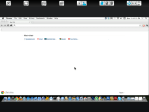
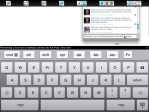
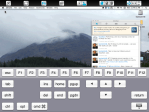
Next up in our series of reviews of remote desktop and VNC applications for the iPad is an application called Desktop Connect. Like the last remote desktop application reviewed (iTeleport) it has its pluses and minuses, but much more enjoyable and easier to use and a slight bit cheaper as well.

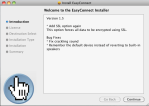
First installation of the Easy Connect application on your remote machine(s) is highly recommended. Download of this remote desktop client application is free – the link for the Mac OS X client is here and Windows client here. It has been certified to contain “No adware, spyware, or malware”, according to this page on the Antacea website, the vendor of Desktop Connect.

Read More…

Posted by: glasskeys | 06/12/2011

The hoops one must jump through…

…to claim my spot on Technorati.

D4EWCTF4S2EN

There, done.

Posted by: glasskeys | 06/12/2011

Remote desktop applications: iTeleport for the iPad.

(To view a larger image with a more detailed description tap or click a thumbnail.)

Today’s post is the first in a series about remote desktop/Virtual Network Computing (VNC) applications for the iPad. Some applications reviewed in the series will work with the iPhone, but be forewarned I won’t be expending any energy or time on this subject, as it is silly to use remote desktop applications on a tiny mobile screen using a miniscule touch keyboard.

The first application in the series is a remote desktop app dubbed iTeleport – a useful remote desktop application that allows you to control a remote Mac or Windows computer with your iPad.

Setup is easy enough, and easily permits you to connect to a remote computer providing you have a gmail account, and I don’t think there is anyone left this day and age that doesn’t have gmail, barring the occasional troglodyte or person professing to hate Google — mainly for attention seeking purposes or to “set one apart from the pack” — like everyone else that is apart from the pack and dislikes Google.

Read More…

Posted by: glasskeys | 06/10/2011

How to take screenshots on the Nook Color.

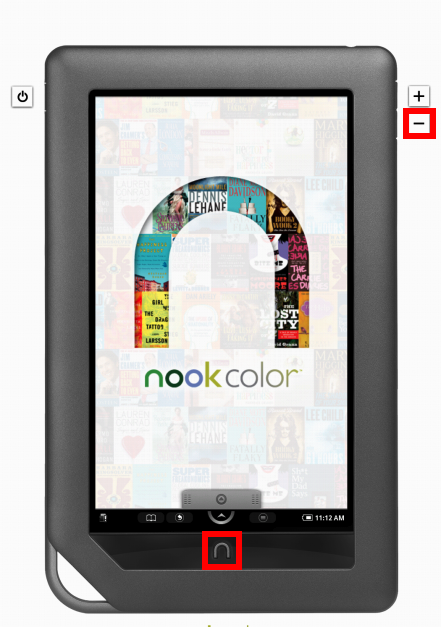
Nook Color screen shot - press both buttons simultaneously.

Press ∩ button and "-" volume button simultaneously.

(To view a larger image with a more detailed description tap or click a thumbnail.)

Recently reviewing my Nook Color content, I realised I have been showing Nook screenshots for months in various tips and tutorials, yet have never revealed how this is accomplished.

A simple press of the button and button (lower volume) simultaneously does the trick.

To learn how to take screenshots on the iPad & iPhone read this.

(Use the tag cloud at right to view similar topics.)

(To view a larger image with a more detailed description tap or click a thumbnail.)

Today I ran into the “another sync client is already running” and “session could not be started” errors whilst trying to sync my iPad 1 which is using iOS 4.3.2 running iTunes 10.3.1 (55) on Mac OS.

These are the steps I performed that fixed my problem(s) syncing after reading Apple forums solutions with no success and then experimenting with several techniques before finally finding one that worked.

First, reboot your iOS device, and do the same for your desktop machine. Connect your iPad (or iPhone) to the desktop computer and start iTunes if it does not automatically open after you connect your device. In iTunes under the Devices section at left, select the iPad ensuring it is highlighted, then Ctrl-Click (Mac) or “right click” (Windows) the iPad or iPhone. In the context menu that appears, click the Reset Warnings option, then click Sync. You will now see any problems that occur during synchronisation, and iTunes will fail once again, however this time you should know the cause.

I discovered that iTunes did not like three movies a podcast had placed in iTunes, a warning message fingered the culprits by revealing the names of the movies that are unable to play on my iPad – this is the root cause of the error that caused attempts at syncing to fail. On your system you may see errors related to movies, music files, podcasts, books or photos. Because the warning message pertained to some of my movie content, I clicked the Movies tab at top, then unticked the automatically include all movies and unticked each movie in the Movies box.

After performing a similar action based on the warning message your system gives you, you may now click the Apply or Sync button located at the bottom right of the iTunes window. After clicking the Apply button and syncing successfully, I removed the problem movies from iTunes, and restored my old settings by ticking (checkmarking) the Automatically include all Movies box and clicked Apply button, thereby syncing all movies with success to my iPad.

Please note others have tried other techniques such as removing old backup files with various success. Backup file removal did not work for me although it may on your system. Other mentions of this issue on the Apple support forums are found here and here.

(Use the tag cloud at right to view similar topics.)
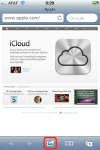
(To view a larger image with a more detailed description tap or click a thumbnail.)

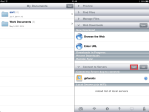
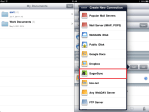
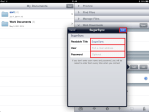
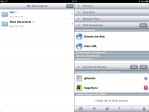
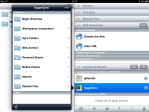
The screenshots above illustrate how to use SugarSync with GoodReader. Setup is simple though, use the following instructions to integrate the service with your GoodReader application.

First, select the Connect to Servers found on the right side of the window in GoodReader. Next, tap the Add button, and select SugarSync from the list of services in the Create New Connection window. Enter the appropriate Readable Title, User, and Password in the three fields given. I chose to enter “SugarSync” in the Readable Title field to distinguish it from Dropbox and other storage services. When finished entering the title and login credentials of your SugarSync account, tap the blue Done button and you will be able to browse your SugarSync files by tapping the account in the list of servers blue circled “>” button in the Connect to Servers list.

Enjoy using SugarSync with GoodReader! Incidentally, the “Magic Briefcase” folder is a handy area to share files between machines.

(Use the tag cloud at right to view similar topics.)
« Newer Posts - Older Posts »

Categories