Posted by: glasskeys | 07/15/2011

The iPhone 5 fanatic…

I have been following the exploits of Rob Shoesmith shortly after seeing a tweet of his posted a couple of months ago. He will be camping out in the streets of London for the launch of the iPhone 5, but there is a catch: Anything he takes on his camping expedition has to be donated and he cannot spend any of his own money whilst on “expedition”.

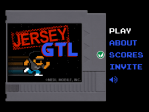
He has an interesting story aside from his experiment, as he used to be a bin collector for his local council and now works for the app incubator company known as MEDL Mobile. One of their incubator apps – Jersey GTL was recently reviewed here on Glasskeys.

Best wishes to Rob on his experiment. See his webpage here and subscribe to his tweets: @shoesmith81.

(To view a larger image with a more detailed description tap or click a thumbnail.)

As an avid listener of the Linux Action Show podcast, I recently heard about updates to Illumination Software Creator which enables users to easily create simple applications for Linux, Mac OS, Windows, iOS devices (iPad & iPhone) and Android.

Illumination differs from most application development, in that it represents the building blocks of applications graphically, enabling a novice user to connect parts to one another without writing code. More information is available from the Radical Breeze intro page, tutorials, and forums.

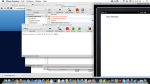
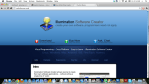
Since the app is available as a free trial, I decided to give it a whirl myself. Installation is easy enough, and after dragging the app to my application folder in Finder, and then running it after install, I was shown a screen with a default application template that can used to build upon to create more complex applications.

I decided to add a lable to the first Window to create a fast “Hello World” type of application. I first clicked on the Window graphic block at centre of screen, and Design Window button to edit this window. This displayed a screen that I could choose common items such as labels, buttons and textboxes to add to the app window. I clicked the label option and then “drew” a label on the window with my mouse. A simple dialog at right let me change the name to lblEasy, caption to Kind Of Easy, and adjust the width and height properties. Alternatively, properties like width, height and the position may also be adjusted by simply clicking the label and using the mouse like one would in photoshop or a cell in a spreadsheet.

I finished editing the Main Window and clicked the OK button, then Run App button on the toolbar using Run iOS – iPad as the build target. Because of silly licensing and legal issues, the build must be opened in Xcode which Illumination Software Creator automatically and kindly opened for me. After XCode opened I clicked the Build and Run button on the app project toolbar, and the application displayed my text in the Simulator window as shown in the screenshots above.

Verdict: Because Illumination Software Creator can be used to deploy to multiple environments, it can be useful for professional developers to quickly develop the framework for prototypes and proof-of-concept apps, as well as the novice user that wants to build simple applications or explore programming concepts. Get it here.

Disclaimer: I am not associated or employed by any company producing software reviewed on this site.

Posted by: glasskeys | 07/12/2011

Jersey GTL for the iPad.

(To view a larger image with a more detailed description tap or click a thumbnail.)

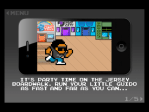
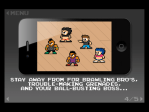
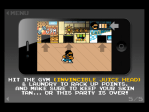
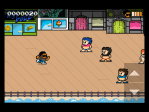
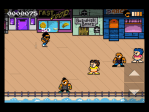
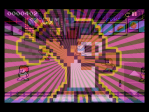
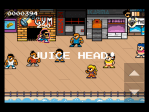
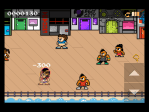
Today I will do something I haven’t done for quite awhile on Glasskeys.com: review a game. Recently I became aware of Jersey GTL – a fun, irreverent game, reminiscent of a NES game of the mid-80s.

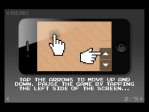
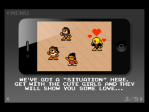
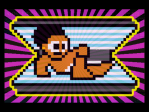
The basic premise behind Jersey GTL isn’t mind shattering in the slightest – navigate a glorious 8-bit character along the New Jersey Boardwalk whilst dodging a slew of juiced-up bully boys, score some action with the birds, and stock up on points by finding food, pints, and swag lying about, occasionally rejuvenating yourself with trips to the gym and tanning booth. Oddly enough, the tan rendered in the 8-bit “retro style” still appears better than the “orange Smurf” look commonly preferred by New Jersey’s real-world citizenry.

The only minor issue I found with the game is that is doesn’t pick up on the orientation of your iPad when you first start the game so you will need to turn it upside-down 180 degrees unless your formula for your gaming challenge = Nostalgia • Πr. Other than this minor inconvenience at start-up (which most likely will be fixed with the next update), the game is responsive, with the sound and look completely duplicating the feel and experience of a classic NES game.

Verdict: Easy to play, nostalgic, and a good distraction if you just want a quick bit of fun. Get Jersey GTL here at the App Store.

Disclaimer: I am not associated or employed by any company producing software reviewed on this site.
Posted by: glasskeys | 07/10/2011

Display port-to-HDMI cables…

Normally I try and produce original content for each and every post here on Glasskeys.com, but after reading an article on Slashdot, motivated my decision to share the news: If you need a display to HDMI adapter you should probably purchase one now as they may be recalled due to arcane legal issues pertaining to HDMI licensing.

Full details from Slashdot can be found here. What is also unclear is the legality and future availability of iPad to HDMI interface cables and adapters being sold, not only by Apple but other high street vendors in the US. In the near future you may have to settle for the old standby of an iPad to VGA cable, like the one I have recently purchased.

Tablet Devices

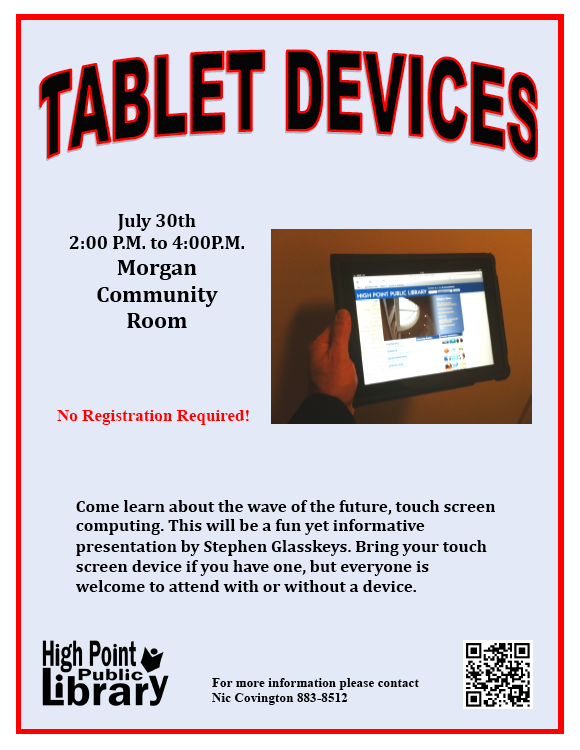
Cheers to Nic Covington for his great work on this flyer for the Tablet Devices presentation I will be giving later this month on July 30th from 2-4 PM at the High Point Public Library, North Carolina USA.

Thanks again for your hard work, advice, and dedication to this project Nic!
For further information, contact Nic at (+1) 336-883-8512.

Flyer available for direct download here.

(To view a larger image with a more detailed description tap or click a thumbnail.)

The screenshots above explain best on how to add Launcher to the Android Home screen and side toolbar. Launcher enables you to quickly open the other apps installed on your Android phone or tab, sorting the icons in alphabetical order.

To place Launcher on your Home screen, tap and hold an empty area on your Home screen until a menu appears. Select Launcher Actions at the top of the menu. The Launcher icon now appears on your Home screen.

If you wish to move it to your side toolbar, tap and hold the Launcher icon on the Home screen, and slide it over the toolbar, releasing your “hold” on the icon by lifting your finger, so it settles nicely in a toolbar niche.

(Use the tag cloud at right to view similar topics.)

(To view a larger image with a more detailed description tap or click a thumbnail.)

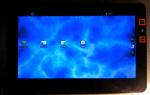
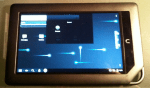
The Recent menu is a handy tool that enables an Android user to switch back and forth between apps currently running in the “background”. As many new users don’t even know it exists, I will show how to invoke this magic menu on two devices I currently have running CyanogenMod 7 (CM7): A Viewsonic G Tablet and a Nook Color.

On the G tab, press the Home and Backward arrow at the same time to display the menu. On the Nook Color use the button and side volume combination. The Recent menu quickly appears containing the icons of all “background” apps – simply tap an icon to switch apps.

If you change your mind and want the Recent menu to disappear without opening an application, use the Home button on the G tab, or the button on the Nook Color to return to the Android desktop.

(Use the tag cloud at right to view similar topics.)

Posted by: glasskeys | 07/01/2011

Video mirroring on the iPad iPad 2.

Video mirroring is the ability to mimic the iPad display on a TV or computer screen, and generally a confusing subject for iPad users. This is partially due to the fact that details on the official Apple page explaining video mirroring (see link) have been ran through an English to “marketing-speak” translator, leaving few answers and a vague, lingering desire to purchase a “new 30-pin to HDMI to wow adapter” – whatever that is.

Apples’ iPad specs page is more informative, and at first glance reading this page I assumed that both the first & second generation iPads would fully support this feature, after all they are both capable of running the same version of iOS and video mirroring doesn’t require a camera. I sadly report that I assumed wrong, as only the iPad 2 will fully support real screen mirroring – i.e. what-you-see-on-the-iPad2-appears-on-a-screen. I researched further and learned I can use either the Apple VGA Adapter (most projectors & computer screens) or Apple Digital AV Adapter to accomplish this.

This of course leaves the huge user base of first generation iPad users SOL, because the ability to mirror video on their device is largely decided by app developers. Some, definitely not a majority of apps for the iPad 1 will mirror video, you may consult this guide for a short list of these.

Apple would rather sell you a new iPad 2 if you are an educator (ie. underfunded school or library), business user, lecturer, salesperson, etc. This – even if your first generation iPad is more than capable of full video mirroring. Watch this clip or this one on YouTube for demonstrations of the iPad 1 performing full (real) video mirroring.

Knowing that the only reason that one can’t take advantage of this feature on the first generation iPad is because a setting called display-mirroring has been purposely set false instead of true, presents a strong argument for jailbreaking his or her iPad and changing the setting manually.

(Use the tag cloud at right to view similar topics.)

Posted by: glasskeys | 06/28/2011

Calling all Windows OS tablet owners.

I am seeking to purchase a Windows OS based tablet to review software, write apps, etc. Please let me know your favourite Microsoft OS tablet by posting a comment — it will aid greatly in my purchasing decision and help me grok the windows tablet info people will find most relevant and useful.

Kind regards,
Stephen.

Today I will describe the steps needed to install CyanogenMod on a bootable SD card for use on the Nook Color. The point of making a bootable SD card is that it preserves the stock install of the Nook Color (and your warranty). In plain English this means you will still be able to continue to purchase & share books, magazines, and apps from B&N, then when you want to use the Nook Color as an Android tablet you may “pop-in” the SD Card that has a bootable CyanogenMod 7 image.

This gives you the ability to purchase Android Market apps, use Gingerbread (Android 2.3), and lets you take advantage of the working bluetooth chip hidden from users and disabled on the hobbled flavour of Android installed by default on the Nook Color.

I read many sources of information and grateful for the information learned from members of these incredible communities: CyanogenMod Wiki, XDAdevelopers, and NookDevs. The install method I formulated is an amalgamation from information found on the Nookdevs and XDAdevelopers pages and forums.

Some prerequisites before you begin – first you will need a suitable micro SD card, I am using a PNY 8GB Class 4 micro SD card for my image, 2GB is too small and 4GB cards aren’t worth the bother. But according to this table you may wish to purchase a cheap Sandisk Class 2 8GB card for best performance.

Another hardware requirement is a way to write data to the micro SD card if your computer does not have a slot, the solution is a USB to micro SD adapter. Although I used an adapter that came bundled with another card I had purchased in the past, this and this were found on Amazon within minutes, these adapters are available at virtually all shops that carry micro SD cards, or usually bundled with a card as mine was. Cost is usually very cheap, especially if purchased online.

Read More…

« Newer Posts - Older Posts »

Categories