(To view a larger image with a more detailed description tap or click its thumbnail.)

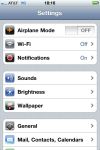
This post is for those that may no longer want to use 3G as their primary data connection, and wish to use home Wi-Fi or occasional use of a Wi-Fi network at a local coffee shop. The following walk-through and screen shots above will help you on your way.

First, open the Settings application, and tap Wi-Fi. The Wi-Fi Networks screen appears, there you may turn the Wi-Fi slider to the On position. The iPhone will then look for Wi-Fi network connections that are available near your present location. These are listed and displayed in the Choose a Network… section of the Wi-Fi Networks screen. (In the screen shots above, I selected the “Clear Spot” network.)

After the network is selected enter your Password in the field provided. (If you bollocks up the password, a message will display, tap the Dismiss button and retry entry of the password) Tap the blue Join button when password entry is complete. A successful password entry means you have joined the network and a blue tick mark (check mark) will be aside your network name in the Choose a Network… section. You are now using Wi-Fi and may click the Home button to exit Settings.

Finally, if you wish to view your current Wi-Fi network, return to Settings and the name will display on the first screen next to Wi-Fi.


I am reprinting a post from the Xdev forums on why Google is using Media Transport Protocol (MTP) based storage instead of USB storage on Honeycomb (Android 3.0). This of course also pertains to the Xoom, which recently went on sale as the first Android 3.0 based tablet.

Forum user Gogol posed these questions:
“-What is the breakdown of that 32GB Xoom internal memory (how many parition (sp), how much space for apps / files)?
– Why Google is using MTP instead of USB file transfer on Honeycomb?”

He received the following response from a Google developer:
“MTP is a big improvement over USB mass storage — for devices with lots of internal memory, a manufacturer no longer needs to come up with some hard partition between the USB mass storage and internal storage. Instead, they are all in one partition, with MTP providing access to the directory of media files that would normally be available through USB mass storage. This means there is no longer a need for apps on SD card for such devices, because what used to be the ‘internal SD card’ is in the same partition as where applications are stored. The storage on your device can be used for either applications or media, depending on what you want to put on it. You aren’t stuck with how much space the manufacturer decided to leave for the two areas.

Oh also this means that the media storage doesn’t need to be unmounted from Android when it is being access through the PC.
Read More…

Posted by: glasskeys | 02/26/2011

How to use two keyboards at once on the iPad.


(To view a larger image with a more detailed description tap or click its thumbnail.)

Although there have been other keyboard tips so far, I couldn’t resist this one. I found this accidentally whilst I tried to eject a DVD, but the keyboard was still paired with my iPad instead of my Mac. I used Pages to illustrate the concept in the photos above.

Posted by: glasskeys | 02/26/2011

Two ways to find iOS version on the iPad & iPhone


(To view a larger image with a more detailed description tap or click its thumbnail.)

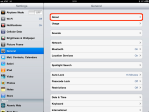
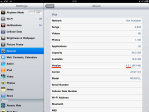
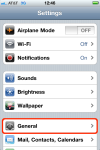
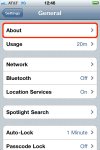
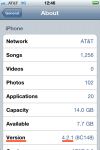
The following quick walk-through explains two methods one might use to ascertain the iOS version of a device.

Method one involves finding it on the device itself. On both the iPad & iPhone, use the following guide to let your fingers do the walking: Settings, General, About, then you may gaze upon the Version in the About screen.

The second method involves iTunes. First connect your device(s) to your iTunes computer. Then making certain the device is selected on the left menu of iTunes, click the Summary tab. In the center of this tab, labelled Software Version you will find the iOS version of the device selected.

NOTE: iOS versions for each device can be different, and is why proper device selection in iTunes is important to find it’s current version.

Posted by: glasskeys | 02/25/2011

Up to the minute Xoom updates from the Android front.

On the Android front – My eyes have been glued to the Xoom forums at XDADevelopers reading opinions & technical dissection of the hardware, software and other minutae that only a tablet Otaku could find interesting.

One kind poster in the forums has even posted a link to a breakdown of the device.

Much interest has been shown to the device after its stellar performance at Comdex running Android 3 (Honeycomb). It will also be possible to use with 4G, but may require a departure from its owner of up to 6 days for a 4G update.
————————-

Update 02/28/2011: More information about the Xoom filesystem.

Barnes & Noble - Nook Color class.

B&N - Nook Color class & free coffee offer.


To people interested in all types of tablets, you will perhaps be interested in learning that your local Barnes & Noble may have a free tutorial class on the Nook Color this Saturday, February 26, 2011. My local class starts at 2:00 PM, check on the availability and start of your area class by clicking the link below.

This link provides all details, a store locator, so you may check event schedules, and details of the free coffee offer.

I for one, will assuredly be attending my local event to find out more on this intriguing tablet.

Posted by: glasskeys | 02/23/2011

How to update apps on the iPad & iPhone.

Update: Use the “Read More…” link at the bottom of the post to view a slideshow example.

Recently I encountered confusion from a fellow iPad user on the meaning of the red circle in the corner of the App Store icon. I explained that it is the way the App Store notifies an iPad/iPhone user that installed applications need updates, the tally of these appearing in the red circle. I further went on to explain the meaning and purpose of updates, and that they are simply newer versions of apps that may provide features, fix bugs, or produced to take advantage of the newest IOS features. In essense, it really means that apps should be updated on a fairly regular basis to take full advantage of the benefits of doing so.

To update your application(s), perform the following steps: Open the App Store, then tap the Updates button at the bottom right. A list of apps needing updates then appears, you may opt to update everything by tapping the Update All button found at the top right of the window, or a single app of own your choosing. Personally, I usually choose the single app Update option if I am connected via 3G, and reserve Update All for occasions when connected to WiFi. Frozen app updates seem to occur most on 3G when updating more than one app concurrently in my experience.

To update only one application, select it, then tap the blue Update button. This will then change to a green Install button, which of course if tapped, begins the update process for the app.

After choosing either the Update All or single app Update option, you will most likely be prompted to enter your App Store password. Note: Your password is not needed for the purpose of charging you for updates, it is requested so that your iPad or iPhone can be verified as a legitimate device having an authentic app store user account.

The rest is as mundane as watching paint dry. A bar appears indicating update progress, and shortly after it is fully coloured blue, will the application will be updated to its newest, (hopefully) less buggy incarnation.

Read More…

(To view a larger image with a more detailed description tap or click its thumbnail.)

Todays petit post is a simple tip that works on many applications on the iPad & iPhone, yet many users I encounter are not aware of how to immediately scroll to the top of the page of their applications.

The screenshots above illustrate best — tapping the top of the application bar will rapidly move your scroll bar to the top of the page, all accomplished without making you appear that you are trying to dig through your touch screen with your finger tips.

The screenshots show Safari iPad & iPhone examples, but this same trick works in many apps including Pages, Notes, eBook readers and countless others.

Update 9 May 2011: Read this tip on how to quickly scroll to the bottom of a web page on the iPad.

Posted by: glasskeys | 02/22/2011

Quick update…

I have been experimenting with some jailbreak free ways of allowing Safari to download video content & a work around for the annoying Safari refresh behaviour.

We left off in the last step with our iPad backed up and synchronised. Before we begin the process of using our downloaded IPSW file to update our iPad iOS version, we need to tether our phone to our Mac, so that iTunes will be able to verify and authenticate the update. Without this brief connection to Apple for verification, it becomes impossible to update your iPad to iOS 4.2 (or higher), barring jailbreaking, which this tutorial does not cover.

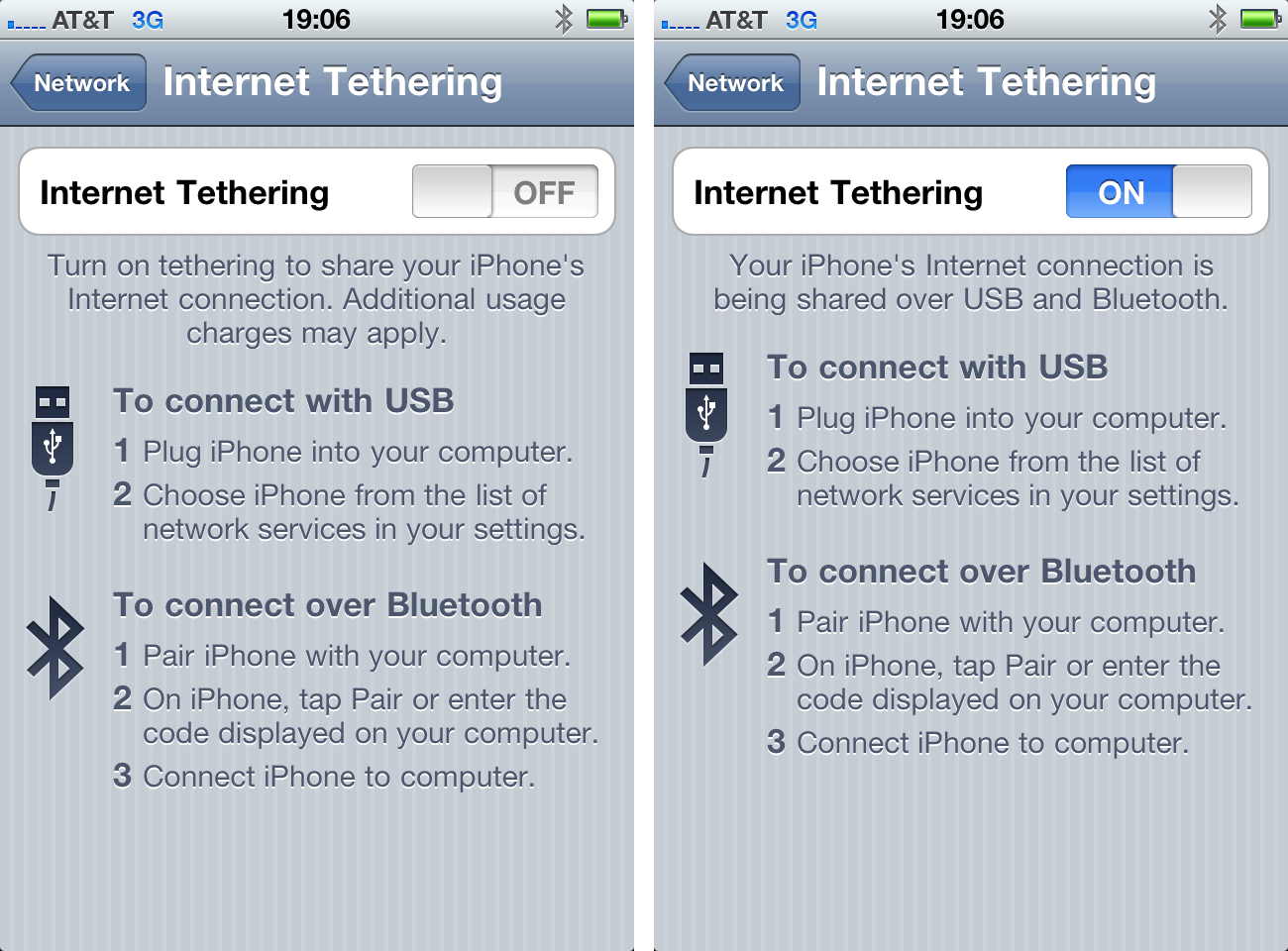
This information from Apple explains a bit more about the requirements for tethering your phone. I connected my mobile to my Mac via the USB port instead of using bluetooth, although bluetooth is permissible and the choice of many users for convenience. Open Settings, select General, Network, Internet Tethering and switch ON, select your preference of USB or Bluetooth in the blue dialog that appears shortly after turning on:
Downloads

Read More…

« Newer Posts - Older Posts »

Categories