-
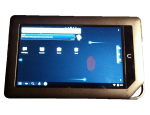
- Tap and hold finger.
-

- Tap Launcher Actions.
-

- Launcher on Home screen.
-
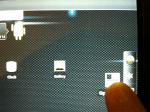
- Moving Launcher to toolbar.
-

- Launcher placed over toolbar.
-

- Tap Launcher & view apps.
(To view a larger image with a more detailed description tap or click a thumbnail.)
The screenshots above explain best on how to add Launcher to the Android Home screen and side toolbar. Launcher enables you to quickly open the other apps installed on your Android phone or tab, sorting the icons in alphabetical order.
To place Launcher on your Home screen, tap and hold an empty area on your Home screen until a menu appears. Select Launcher Actions at the top of the menu. The Launcher icon now appears on your Home screen.
If you wish to move it to your side toolbar, tap and hold the Launcher icon on the Home screen, and slide it over the toolbar, releasing your “hold” on the icon by lifting your finger, so it settles nicely in a toolbar niche.
(Use the tag cloud at right to view similar topics.)
 Glasskeys


 glasskeys.com
Leave a comment