(To view a larger image with a more detailed description tap or click a thumbnail.)

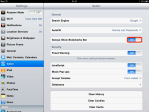
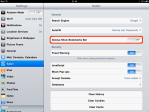
I recently went to add the scroll to bottom bookmark for Safari on my first generation iPad. After creating and saving the shortcut on the Bookmarks Bar, my new “button” suddenly disappeared. At this point, I realised I had forgotten to turn on the Always Show Bookmarks Bar switch in settings.

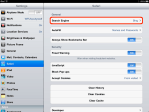
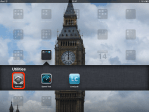
This setting is easy to find – if you remember it – open the Settings application, scroll on the left until you see Safari and then tap this option. Toggle the Always Show Bookmarks Bar setting to the ON position.

(Use the tag cloud at right to view similar topics.)

A quick bit of information for those HTML inclined: Use the ghttp trick to make links open directly in GoodReader.

Example anchor tag:
<A HREF="ghttp://mediafort.org/source/GlasskeysCFE.zip">Save in GoodReader</A>

Posted by: glasskeys | 05/13/2011

ASUS EEE Transformer…

I didn’t win the Facebook drawing unfortuately, but Asus now has a definitive list of locations in the US where you can purchase this tab for $399.

(To view a larger image with a more detailed description tap or click a thumbnail.)

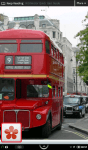
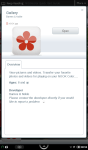
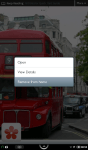
I have been mostly pleased with improvements present in version 1.2.0 of the latest Nook Color firmware update, scrolling has been faster, Flash is supported and performance generally seems a small bit faster. One so-called improvement I wish could be given back are the obscenely huge icons that appear on the home screen after running an application.

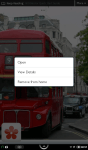
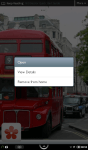
Removal is easy enough – inversely proportional to the size of the icons I suppose – a simple tap and hold of the monolith in question will suffice until a menu appears at screen centre. Tap the bottom Remove from home option on the menu and the icon will disappear revealing the missing 25% of your much missed background wallpaper image once again.

Any fears that your application is being permanently removed are unwarranted, you will have ample opportunity to experience the joys of icon removal over and over again.

(To view a larger image with a more detailed description tap or click a thumbnail.)

In the recent past on glasskeys.com I posted a tip on how to quickly scroll to the top of pages in Safari, but as the weeks have gone by I kept seeing ever more searches by readers on how to quickly scroll to the bottom of web pages. After a bit of experimentation, I found a way that uses Safari’s built-in ability to run javascript as a bookmark to accomplish this.

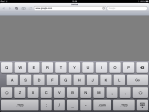
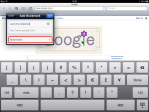
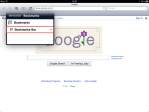
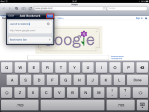
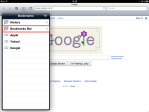
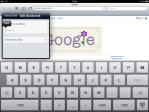
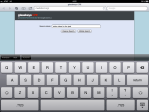
If you wish to add this functionality open Safari and browse to your favourite web page, I chose http://www.google.com because it loads quickly and will be easy to replace shortly with a short javascript snippet. Tap the button to the left of the white URL field that contains http://www.google.com – and tap the Add Bookmark button. In the top field type <Scroll to Bottom>, then make sure that at the very bottom of this window Bookmarks Bar is selected. If this displays Bookmarks, tap it and in the next menu select the Bookmarks Bar folder. Navigate back to Bookmarks and tap the blue Save button.

You will now see <Scroll to Bottom> on the bookmark bar in Safari and if it is selected it will take you to Google. At this point we need to replace the http://www.google.com address with Javascript that makes Safari scroll to the bottom of web pages.

For those curious, the javascript that will be used is the following:
javascript:window.scrollTo(0,document.body.scrollHeight);

Because this needs URL encoded to run properly, it changes to this:
javascript:window.scrollTo%280%2Cdocument.body.scrollHeight%29%3b%0a

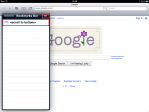
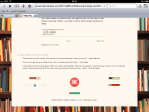
To paste our Javascript source tap the bookmarks button (the “open book” icon). Then tap first the Edit button and secondly the <Scroll to Bottom> bookmark entry. Copy the “iPad friendly” and easy to select text from the rectangle below and paste this into the field that currently contains http://www.google.com. You need to completely erase all text before pasting or the script will not work properly.

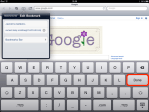
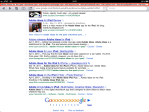
Tap the Done key on the keyboard. You may now enter a website at top to test your new “scroll to bottom” button. See the screenshots above for examples of this. Incidentally — this tip also works with the Atomic Web browser as the last two screenshots illustrate.

* * * * * * * * * * * * * * * * * * * * * * * * * * * * * * * * * * * * * * * * * * * * *
UPDATE (15 May 2011): You may wish to ensure that your Bookmarks Bar is always visible whilst using this tip.

(To view a larger image with a more detailed description tap or click a thumbnail.)

Most users have a favourite search engine that they use on a day to day basis. Todays tip illustrates how to set the default search engine used with the two most popular browsers on the iPad and iPhone: Safari and Atomic Web Browser.

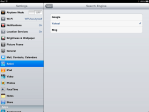
To change the default search engine for Safari do the following: Open the Settings application, tap the Safari category, then tap Search Engine in the General section. You can then select one of “big three” defaults: Google, Yahoo!, or Bing.

Atomic Web Browser on the other hand offers a better selection of search engines and the ability to add your own. Open the Atomic Web application, tap the Gear button on the top menu bar and pick Settings, then select Search Engines under the General Settings category. You may now choose from the following defaults: Amazon, Bing, Ebay, Google, Wikipedia, Yahoo, and YouTube. You may also add your own if it is not listed by tapping the New Search Engine button at the bottom left.

<shameless plug>Type mediafort.org to add the glasskeys CFE site</shameless plug> – a search page that uses google and a slew of parameters designed to filter out many SEO content farm sites from search results.

Posted by: glasskeys | 05/07/2011

Triad iPad and tablet user group meeting at 11:00 am.

Triad area tablet users – a reminder: The Triad iPad and tablet computer user group meets today at 11:00 am.

All tablet users (iPad, Android, Microsoft based tablets, etc.) are welcome as always. I will be taking an iPad, Android tablet, and a Nook Color for those interested in getting a tablet, want to “test drive” a tablet, or have questions.

Posted by: glasskeys | 05/05/2011

How to remove location tracking on the iPad & iPhone

Apple has just announced that iOS 4.3.3 has been released. Of key importance to many is the location tracking feature that will be removed after update to this latest iOS version.

To ensure your iPad or iPhone gets this update, connect your device to your iTunes computer, and click the check for update button in iTunes. Follow the directions given by iTunes and please ensure to unmount your device in iTunes after the update installs and before disconnecting the USB cable.

Todays glasskeys.com post will provide a useful tool not only for tablet and mobile users, but desktop users also. Over the last three months I have read much about content farms: the advert-laden sites that crop up with ever increasing frequency on Google search results. Expert at gaming search engines, they have incited scorn from a variety of users and have even motivated some search engines such as blekko to ban content from alleged “content farm” sites entirely.

I began investigating on how one could instruct Google to exclude web sites from search results. Google helpfully provides the answer on this search help page. Google also offers a free plug-in for Chrome that allows one to create personal blocklists to keep sites from appearing in search results if Chrome is running on a supported computer. Since iOS devices cannot run Chrome, that leaves iPad, iPhone and other tablet users breathing content farm dust so to speak. So at that point I decided to create a web tool that filters many alleged content farm pages from search results and works on the following platforms:

  • Safari on the iPad, iPhone, Mac OS X & Windows
  • Chrome on Mac OS X and Windows
  • IE 7 on Windows
  • Firefox is misbehaving, but should be working soon.

To get a list of sites to filter, I consulted this list from jongales.com, and this techcrunch article. The screenshots above show the glasskeys CFE site in use. CFE incidentally stands for content farm eliminator and yes the name makes me laugh too.

So without further ado, here is the link to glasskeys CFE. The simple page source, spreadsheet, and helpful text files zipped to help “roll your own” CFE is available for download here. If you are using Safari on the iPad/iPhone, tapping this link will directly download the zip file into GoodReader storage.

Posted by: glasskeys | 05/03/2011

How to install CyanogenMod on the Viewsonic G tablet.

(To view a larger image with a more detailed description tap or click a thumbnail.)

I recently acquired a Viewsonic G tablet with the primary intention of using it to explore Android development. Although I was impressed by the initial interface, I found that the stock Viewsonic G tablet did not include access to the Android Market. At this point and juncture I decided to investigate how one would be able to install Android on a tablet.

I read about CyanogenMod and was told good things about it from a work colleague. Cyanogen is a ROM image that has been created by a group of dedicated programmers to (re)deliver the full functionality of Android OS to mobile and tablet users whose machines have had functionality removed by phone carriers and OEMs.

For example, mobile service providers in America are notorious for “hobbling handsets” and are motivated to to this so that they may charge extra fees for functionality that is usually included as a default feature by Google in the Android OS. They also have carte blanche to do this, since the US has weak consumer protection laws and politicians of all parties no longer even pretend they aren’t paid and work for powerful corporate lobbies instead of their constituents. So much for de-regulation and the free market.

The mobile service providers then “lock” the handsets to make it hard to restore the real OS, keep technical specs and documentation secret, and make it difficult for a customer to change the SIM cards on their mobiles — or all of the above. Many of these practices are of course illegal in Europe — especially in France where handsets must be sold unlocked.

A good example of this unscrupulous practice you may have encountered with your current mobile are any tethering fees imposed by your mobile company. This functionality is available by default (and free) in a non-crippled implementation of Android. For these reasons (and many others beyond the scope of this tutorial) many users decide they want to run the unbroken version of Android AKA “real Android” on their mobiles and tablets.

Since I use an iPhone (locked & un-jail broken BTW) for my mobile needs, I want to run as close to a stock version of Android on my new tablet for the purposes of software development. CyanogenMod provides the closest match for my needs, and decision made, I started reading the CyanogenMod Wiki to determine how to flash (install) this ROM image on my tablet. I quickly found information specific to my device, the “Viewsonic G Tablet: Full Update Guide”

Before installing CyanogenMod, the Wiki recommended that I download and install the ClockworkMod Recovery tool first. This tool gives you the power to determine what the machine does during “boot up”, and this ability is needed to redirect the machine to “flash” the CyanogenMod Android image to the machine. I then read the instructions in the section Installing ClockworkMod Recovery.

Next in the Flashing CyanogenMod section, I followed the Second Method (via Recovery) technique since I did not have RomManager and was unable to purchase this application using the built-in store that came stock with the Viewsonic G tablet. I used this ROM and this Google Apps file, and following the instructions to the letter, I flashed my ROM. All was well until my tablet became hung on the “Birds” splash screen after power on.

A bit of panic hit me: Did I brick my tablet so soon? It turns out others have ran into this issue before. So I downloaded and installed the NVidia tools here so Windows would see the tablet in APX mode, and the proper NVFlash images from here (I used the nvflash_windows_20100500.zip & nvflash_gtablet_2010110500.zip) and then followed the directions on this Android Forums page.

Now that my tablet was once again squeaky clean I followed the directions on the CyanogenMod Wiki page again as mentioned above, and now have a Viewsonic G tablet running Gingerbread thanks to the Cyanogen, XDA Developers and Android Forums communities.
« Newer Posts - Older Posts »

Categories